Duolingo Practice Test Error: How to Fix It Fast

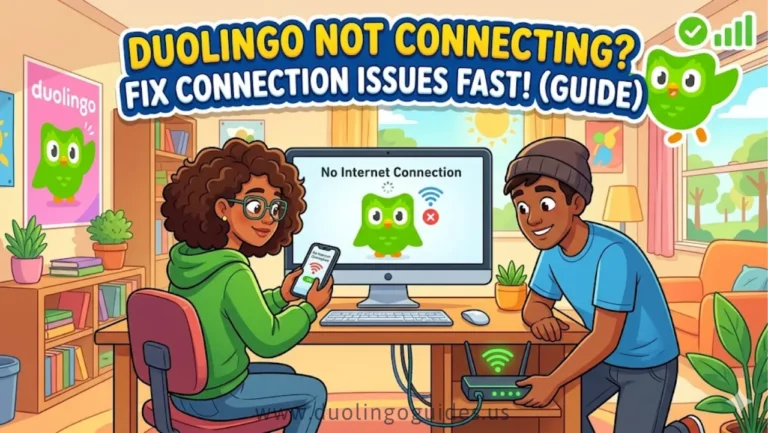
A Duolingo practice test error can be frustrating, especially when the test freezes, your microphone stops working, audio disappears, answers are not recognized, or the test refuses to load. In most cases, the problem is connected to the app, device, browser, internet connection, login session, or temporary server issues.
The good news is that you can usually identify the problem quickly by checking a few things in the right order. This guide brings together the most useful troubleshooting points from the leading guides and organizes them into a simple process you can follow before taking another practice test.
What Causes a Duolingo Practice Test Error?
The most common causes fall into a few practical categories:
- Outdated Duolingo app or browser
- Unstable internet connection
- Temporary server problems
- Low device memory or overheating
- Microphone or audio problems
- Browser compatibility or extensions
- Login or account problems
- App cache or corrupted temporary data
- Device compatibility issues
Start with the simplest fixes first. There is no reason to reinstall the app or change multiple settings if restarting the app solves the problem.
1. Force Close Duolingo and Open It Again
If Duolingo freezes, crashes, or stops responding, completely close the application before trying the practice test again.
On Android
Go to:
Settings → Apps → Duolingo → Force Stop
Then open Duolingo again and retry the practice test.
On iPhone
Close Duolingo from the recent-apps screen, then open it again.
A simple restart can remove a temporary app process problem without changing your account or progress.
2. Update the Duolingo App
An outdated application can create compatibility problems, particularly when the service has changed something on its side.
Check your device’s app store and install any available Duolingo update before running another test.
If you are using Duolingo through a browser, update the browser as well. Duolingo’s own website recommends using a current supported browser; supported options include Chrome, Safari, Firefox, and Microsoft Edge.
3. Check Your Internet Connection
A practice test needs a reliable connection. A weak or unstable network can interfere with loading questions, submitting answers, audio, or other test functions.
Before starting again:
- Switch to a more stable Wi-Fi connection if possible.
- Avoid starting the test while your connection is repeatedly disconnecting.
- Stop large downloads or streaming on the same network.
- If necessary, restart your router.
- Test another website or service to determine whether the problem is specific to Duolingo.
One competitor specifically highlights 3–5 seconds of network disruption as a potential point at which submission or test functions can be affected. Treat this as a troubleshooting warning rather than a guaranteed Duolingo cutoff.
4. Check Whether Duolingo Is Experiencing a Server Problem
Sometimes the problem is not your device at all.
Server-side problems can cause:
- Practice tests not loading
- Login failures
- Audio problems
- Slow responses
- Unexpected interruptions
Check Duolingo’s official status page before spending time changing your device settings. It can show whether Duolingo services are currently operational and provides historical incident information. Check Duolingo system status
If the service itself is having an outage, wait until it is resolved instead of repeatedly reinstalling the application.
5. Clear the Duolingo Cache
A damaged or outdated cache can sometimes interfere with app behavior.
Android
Go to:
Settings → Apps → Duolingo → Storage → Clear Cache
Then reopen Duolingo.
If clearing the cache does not help, you may consider clearing app data, but remember that this can require you to log in again.
iPhone
iOS does not provide the same direct cache-clearing option as Android. Close and restart the app first. If the problem continues, reinstalling Duolingo can be the next troubleshooting step.
6. Fix Audio and Microphone Problems
If the practice test cannot hear you or audio is not playing correctly, check the basic hardware settings before assuming the test itself is broken.
Make sure:
- Your device volume is turned up.
- The microphone is not blocked.
- Duolingo has the required microphone permission.
- Your headphones are connected correctly if you are using them.
- No other application is controlling the microphone.
- You are speaking clearly during pronunciation or speaking exercises.
A microphone problem can look like an answer-recognition error, so testing the microphone separately can save you time.
7. What If Duolingo Does Not Recognize Your Answer?
Not every incorrect recognition is necessarily a technical failure.
For spoken answers, pronunciation recognition may be affected by unclear speech, background noise, or microphone quality.
For written or typed answers, carefully check what you entered before assuming the system malfunctioned.
If the same answer repeatedly appears to be incorrectly evaluated, use Duolingo’s reporting mechanism where available. Duolingo has explained that learner reports are used to identify potential content and answer problems.
The important distinction is:
One incorrect result may be an answer issue, while repeated unexpected behavior can indicate a technical problem.
8. Check Your Browser
If you are taking the practice test through a browser and it will not load correctly, try these steps:
- Update the browser.
- Clear browser cache.
- Disable extensions that may interfere with the page.
- Restart the browser.
- Try a supported browser.
- Avoid using unnecessary browser tabs while testing.
Browser extensions can sometimes interfere with websites or microphone permissions, so testing with extensions disabled can help identify the cause.
9. Check Your Login Credentials
If the problem occurs before the practice test starts, verify that you are signed into the correct Duolingo account.
Check your:
- Username
- Password
- Account/session status
If you recently changed your password or account details, signing out and signing back in can refresh the session.
10. Give Your Device Enough Resources
Practice tests can behave poorly when a device is overloaded.
Close memory-intensive applications before starting. This is especially useful if your device is older or you normally keep many applications running simultaneously.
One competitor identifies 25–30 minutes as a possible period when older devices may begin overheating under heavier workloads.
To reduce the risk:
- Close unnecessary applications.
- Keep the device on a stable surface.
- Avoid running demanding programs in the background.
- Keep the device adequately charged.
- Restart the device before a particularly important session.
11. Don’t Immediately Refresh a Frozen Test
If the test briefly freezes and then recovers, avoid immediately refreshing or closing everything.
One competitor uses 10 seconds as a practical freeze threshold: if the test resumes on its own in under 10 seconds, continuing may be preferable to refreshing.
If the freeze continues or the test clearly stops responding, then restart the application and investigate the underlying problem.
12. Practice at a Less Busy Time
One competitor’s troubleshooting guide identifies these time windows as potentially different in terms of error frequency:
- 8 AM–10 AM: reported as high error frequency
- 2 PM–4 PM: reported as low error frequency
- 8 PM–10 PM: reported as medium error frequency
These times should not be treated as official Duolingo outage rules. They are competitor-reported observations rather than guaranteed server behavior.
If you repeatedly encounter errors at one particular time, however, trying another time can be a useful troubleshooting experiment.
13. Prepare Your Device Before Retaking the Test
Before starting another practice test, use this quick checklist:
- Update the Duolingo app.
- Check your internet connection.
- Restart the application.
- Check microphone permissions.
- Test your audio.
- Close unnecessary apps.
- Make sure the device has enough battery.
- Clear cache if you are using Android.
- Check that your browser is supported.
- Sign in again if you suspect an account-session problem.
One competitor recommends starting with around 50–60% battery and keeping the charger connected where appropriate.
The goal is simple: eliminate preventable technical problems before the test begins.
14. Don’t Confuse a Practice-Test Problem With a Test-Day Violation
A technical practice-test error is different from a Duolingo English Test certification problem.
If you are taking the actual certified Duolingo English Test, security rules become extremely important. Looking away repeatedly, incorrect camera setup, outside assistance, and unauthorized software can create certification problems.
Duolingo itself recommends keeping your attention on the screen and ensuring the required camera setup is correct.
For that reason, don’t use workarounds such as VPNs, unauthorized extensions, screen-recording software, or outside assistance simply to get around a technical problem.
15. What to Do If Nothing Fixes the Error
If you have already restarted the app, checked your connection, updated the software, tested your microphone, and checked the server status, the next step is Duolingo Support.
When contacting support, provide useful evidence rather than simply saying that the test does not work.
Include:
- The exact error message
- Your device type
- Operating system
- Browser or app version
- Approximate time the problem occurred
- What you were doing when the error appeared
- Screenshots or recordings when appropriate
This gives support more information to investigate the problem.
A Simple Troubleshooting Order
If you want the fastest possible process, follow this order:
1. Restart Duolingo → 2. Check internet → 3. Update app/browser → 4. Check microphone/audio → 5. Clear cache → 6. Check server status → 7. Restart device → 8. Sign in again → 9. Contact support
This order starts with the easiest fixes and avoids unnecessary changes.
Final Takeaway
A Duolingo practice test error does not automatically mean that your account or test is damaged. Most problems can be narrowed down to the app, connection, browser, device, microphone, cache, login session, or temporary server issue.
Start with the simple fixes, especially restarting the app, checking your internet, updating Duolingo, and testing your microphone. If the issue continues across different attempts, document the error and contact Duolingo Support rather than repeatedly changing unrelated settings.
For important test preparation, also remember that technical troubleshooting and test security are two different things. Fix the technical problem without using tools or shortcuts that could create a separate certification issue.

I’m a website professional with 5 years of experience in building, managing, and growing online content platforms. As the creator of DuolingoGuides.us, I focus on providing helpful, easy-to-understand guides and resources for Duolingo users and language learners. My goal is to make information simple, accurate, and accessible for everyone.