Duolingo Continue Button Not Working? 10 Ways to Fix It
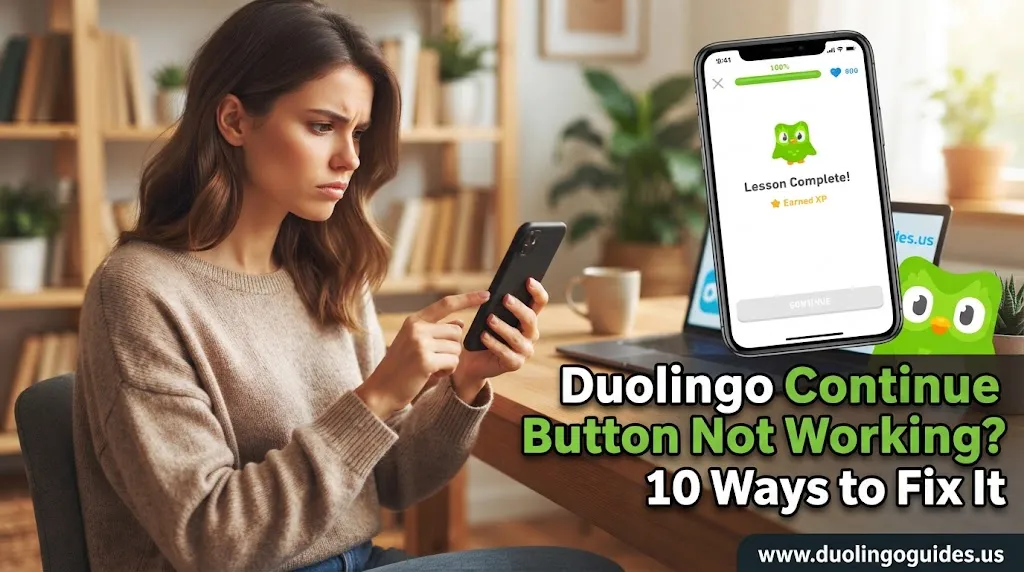
The Duolingo Continue button is what moves you from one exercise or lesson step to the next. When it stops responding, appears frozen, or does nothing after you tap it, you can become stuck even though the rest of the lesson looks normal.
The good news is that this problem is often caused by a temporary app, browser, connection, cache, or account issue. In some cases, the problem can also be related to Duolingo’s servers.
Try the fixes below in order, starting with the quickest ones. You usually do not need to reinstall the app immediately.
1. Close and Reopen Duolingo
The simplest solution is also one of the most useful.
Completely close the Duolingo app rather than simply minimizing it. Wait a few seconds, then open it again and return to the lesson.
The basic process is:
- Close Duolingo completely.
- Wait for a few seconds.
- Reopen the app.
- Open the same lesson.
- Tap Continue again.
A temporary interface or session problem can disappear after the app starts a fresh session.
If the button still does nothing, move to the next fix instead of repeatedly tapping it.
2. Check Your Internet Connection
A Continue button can appear to be broken when Duolingo is actually waiting for a network request to finish.
Check whether other websites or apps are loading normally. If your connection is unstable, try switching between Wi-Fi and mobile data.
You can also:
- Restart your router or modem.
- Wait a few minutes before reconnecting.
- Try another Wi-Fi network.
- Use mobile data temporarily.
- Try an Ethernet connection when using a computer.
If everything else on your device is also loading slowly, the connection is a more likely culprit than the button itself.
3. Update the Duolingo App
An outdated app can cause compatibility and performance problems, especially when the service has changed but your installed version has not.
Open the App Store on iPhone or iPad, or Google Play Store on Android, and check whether Duolingo has an available update.
After updating:
- Open Duolingo.
- Sign in if necessary.
- Return to the affected lesson.
- Test the Continue button.
Keeping both the app and operating system reasonably current can also reduce compatibility problems.
4. Clear Duolingo’s Cache on Android
If you use Android, a corrupted or overloaded cache may interfere with normal app behavior.
The exact menu names can vary between manufacturers, but the usual route is:
Settings → Apps → Duolingo → Storage → Clear Cache
Do not confuse Clear Cache with Clear Data unless you understand what the latter will remove.
After clearing the cache, reopen Duolingo and test the lesson again.
For Android users, this is particularly useful when the app has become slow, freezes, or behaves differently after an update.
5. Refresh Duolingo on iPhone or iPad
iOS does not provide the same traditional cache-clearing option as Android. Instead, you can use the app’s storage controls.
On an iPhone, the general route is:
Settings → General → iPhone Storage → Duolingo
From there, you may be able to Offload App and then reinstall it.
Offloading is different from simply deleting the app. It is intended to remove the application while retaining its documents and data where supported by iOS.
Before making major changes, make sure you know your Duolingo login details.
The same general approach can help on an iPad if the Continue button is stuck there.
6. Restart Your Device
If restarting only Duolingo did not help, restart the entire device.
This can clear temporary memory and background processes that may be interfering with the app.
It is worth trying on:
- iPhone
- iPad
- Samsung phones
- Google Pixel
- Other Android devices
After the restart, open Duolingo before launching several other apps and test the affected lesson.
If Duolingo becomes responsive again, the problem was likely temporary rather than a permanent account issue.
7. Try Duolingo on the Web
If the Continue button is not working in the app, test your account through the web version.
This is a useful diagnostic step because it helps determine whether the problem is connected to your device/app or your account/session.
If the web version works normally, focus on troubleshooting the mobile app.
If the same lesson remains stuck on the web, continue with browser and account checks.
For browser problems, try:
- Updating your browser.
- Opening Duolingo in a different browser.
- Clearing browser cache and cookies.
- Temporarily disabling extensions.
Common browsers worth testing include Chrome, Firefox, and Microsoft Edge.
8. Disable Browser Extensions Temporarily
If the Continue button works in one browser but not another, a browser extension could be interfering with the page.
Privacy tools, ad blockers, script-blocking extensions, and similar add-ons can sometimes change how websites behave.
Instead of disabling everything permanently, test extensions one at a time.
A simple approach is:
Disable extension → Refresh Duolingo → Test Continue → Re-enable if unrelated
If the button starts working after a particular extension is disabled, you have a strong indication of where the conflict is coming from.
Remember that clearing browser cookies may sign you out of websites.
9. Check Your Login and Account Session
A broken or expired authentication session can create unexpected behavior inside an app or website.
Try logging out of Duolingo and signing back in.
Before doing this, make sure you know the correct:
- Email or login ID
- Password
- Account information
If you recently changed your password, subscription, or account details, signing in again can refresh your session.
If you cannot remember your credentials, use the appropriate account-recovery option rather than repeatedly entering incorrect information.
10. Check Whether Duolingo Is Having a Service Problem
Sometimes the problem is not on your phone, computer, browser, or internet connection at all.
Duolingo maintains an official status page that reports the condition of its services and provides incident history.
If Duolingo is experiencing an outage or degraded performance, changing your cache settings or reinstalling the app is unlikely to solve the underlying problem.
In that situation, wait for the service to recover and try again later.
What If the Continue Button Is Still Not Working?
If you have tried the basic fixes and the button remains unresponsive, use a different way to isolate the problem.
First, try another device or platform. For example, if the button is stuck on Android, sign in through the web version. If it works there, the account itself is probably not completely blocked.
You can also restart the current lesson. If only one particular exercise is stuck while other lessons work, the problem may be isolated to that lesson or session.
On a computer, pressing Enter can sometimes act as an alternative way to advance when the interface button itself is not responding. This is worth testing, but it should be treated as a workaround rather than a guaranteed Duolingo feature.
When Should You Contact Duolingo Support?
If none of the troubleshooting steps work, contacting Duolingo support is the next sensible step.
Give support enough information to reproduce the problem. Include:
- Your device model.
- Operating system version.
- Duolingo app version, if applicable.
- Whether you are using the app or web version.
- The language course you were using.
- What happens when you press Continue.
- Any error message displayed.
- A screenshot or screen recording when possible.
This information is much more useful than simply saying “the button doesn’t work.”
Duolingo directs users with app, account, or subscription issues to its support resources.
Quick Troubleshooting Order
If you want the shortest possible route, try these steps in this order:
- Close and reopen Duolingo.
- Check your internet connection.
- Update Duolingo.
- Restart your device.
- Clear the app cache on Android.
- Offload/reinstall Duolingo on iPhone when appropriate.
- Try Duolingo on the web.
- Test another browser and disable conflicting extensions.
- Log out and sign back in.
- Check Duolingo’s service status.
This sequence moves from low-risk, quick solutions toward more involved troubleshooting.
Why the Continue Button Can Stop Responding
There is no single cause behind every Continue-button problem.
The main possibilities fall into several groups:
App problems can include outdated software, temporary glitches, corrupted cached files, or performance issues.
Network problems can occur when Duolingo cannot complete the connection required to load or submit the next part of a lesson.
Browser problems can result from outdated browsers, cached website data, cookies, or extensions.
Account problems may involve an expired session or login-related issue.
Server problems occur when Duolingo itself is experiencing an outage or degraded service.
This is why trying the same fix repeatedly is not always useful. If restarting the app does nothing, change your troubleshooting direction.
Don’t Reinstall Duolingo Too Quickly
Reinstalling can be useful, but it should not necessarily be your first response.
If the problem is caused by a temporary connection issue or a Duolingo service outage, reinstalling the app will not fix the underlying cause.
Start with the low-risk fixes first. Only move toward offloading, reinstalling, or account-related changes when simpler troubleshooting has failed.
Before removing the app, make sure you can sign back into your Duolingo account.
Final Takeaway
When Duolingo Continue button not working is stopping your lesson, the problem is usually worth troubleshooting systematically rather than assuming your account or progress is broken.
Start by restarting Duolingo, checking your connection, updating the app, and restarting your device. Android users can try clearing the cache, while iPhone and iPad users can use the available storage and offload options. If the app remains stuck, test the web version, check browser extensions, refresh your login session, and verify Duolingo’s service status.
If the problem continues across multiple devices or platforms, collect screenshots and device details and contact Duolingo support. That gives you the best chance of identifying whether the issue is local, account-related, or coming from the service itself.

I’m a website professional with 5 years of experience in building, managing, and growing online content platforms. As the creator of DuolingoGuides.us, I focus on providing helpful, easy-to-understand guides and resources for Duolingo users and language learners. My goal is to make information simple, accurate, and accessible for everyone.