
Duolingo Login Issues: Why You Can’t Sign In and How to Fix It
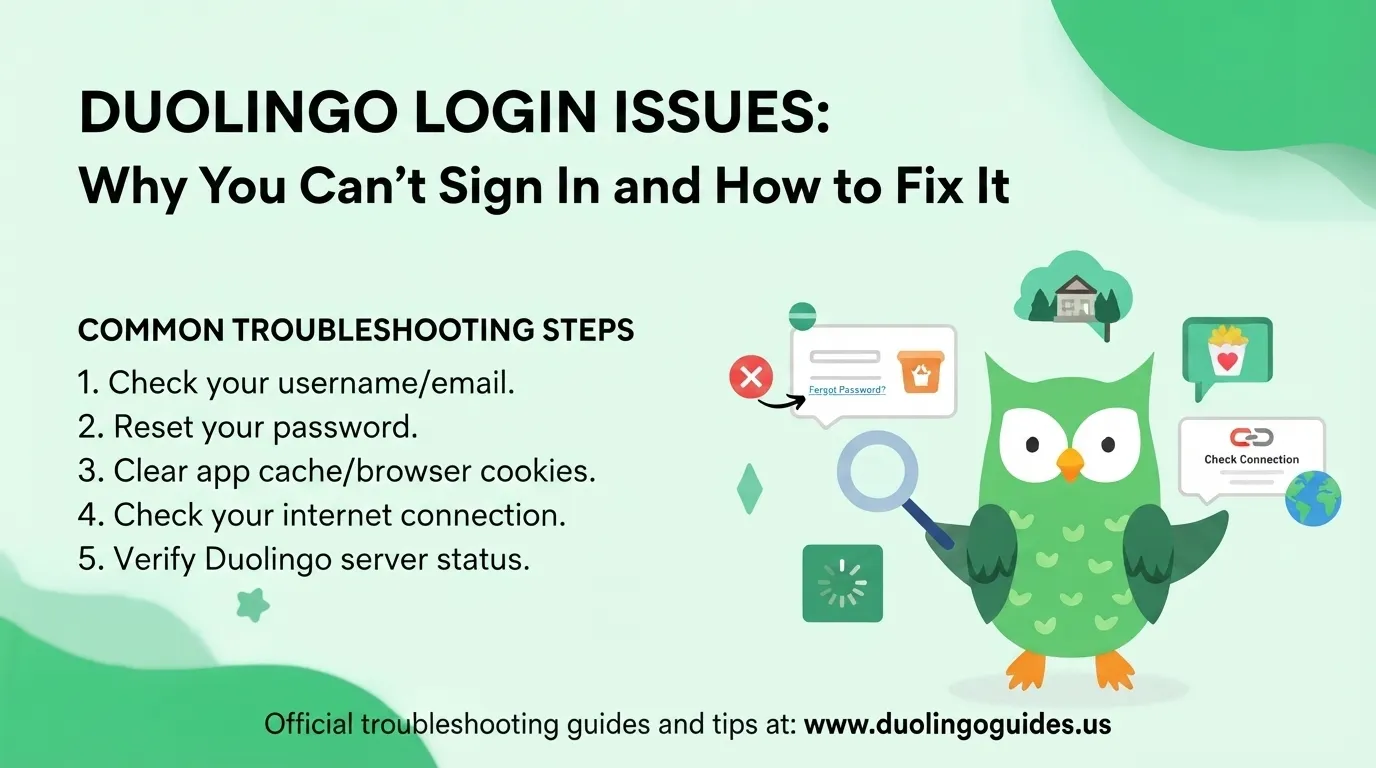
Duolingo login issues can be frustrating, especially when you know your password is correct but the website or mobile app still refuses to let you in. The problem may come from your account credentials, browser cookies, an outdated app, a network connection, third-party authentication, or even a temporary Duolingo server problem.
The good news is that most login problems can be narrowed down quickly. Instead of repeatedly entering your password, work through the likely cause one at a time. This also helps you avoid accidentally creating a second Duolingo account or losing access to the account connected to your progress or Super Duolingo subscription.
Why Is Duolingo Not Letting Me Log In?
A failed login does not always mean your password is wrong. Duolingo login problems can occur at several points between your device and your account.
The most common causes include incorrect login credentials, damaged cookies or cache, an outdated Duolingo mobile app, third-party authentication problems, a weak internet connection, browser-extension conflicts, or a temporary service outage.
If Duolingo suddenly stops working on both your browser and mobile device, check the service status before changing your account settings. If the service is operating normally, move on to browser, app, account, and network troubleshooting.
Check Whether Duolingo Is Down First
Before spending time resetting passwords or reinstalling the app, determine whether the problem is actually on Duolingo’s side.
Status-monitoring services can show user reports, current service health, outage activity, and historical incidents. StatusGator separates reported problems into categories such as error messages, app loading, connectivity, server response, sign-in, service availability, slow performance, and download problems.
IsDown also tracks Duolingo’s service history. Its monitoring began in June 2021, and it reports 258 incidents caught since monitoring began. It tracks 3 components: Duolingo, Duolingo English Test, and Duolingo for Schools.
Its historical data showed 6 incidents during a 90-day period, including 4 major outages and 2 minor incidents, with a median resolution duration of 51 minutes.
These figures are useful for understanding that a login failure can sometimes be a temporary service problem rather than an account problem.
How to Tell if the Problem Is on Your Side
If an outage-monitoring page shows a noticeable increase in reports, that can indicate that many users are experiencing the same problem. Downdetector uses user reports and an outage graph for this purpose.
A spike in reports does not automatically prove that every user is affected, but it gives you a useful signal. If other users are reporting sign-in, connectivity, or server problems at the same time, waiting for service recovery may be more appropriate than repeatedly changing your password.
If there are no unusual reports, continue troubleshooting your own browser, app, account, or network.
Fix Your Duolingo Login Credentials
Incorrect credentials remain one of the simplest explanations for a failed login. Carefully enter the email address or username associated with your Duolingo account and make sure the password is entered exactly as intended.
If you cannot remember the password, use the password-reset process instead of repeatedly guessing it.
Email verification can also affect account access. Check the email address associated with the account and look for verification or account-recovery messages.
Be particularly careful if you have used more than one email address with Duolingo. Multiple accounts can make it appear as though your progress, subscription, or course information has disappeared when you have actually signed into a different account.
What If You Know Your Password but Still Cannot Sign In?
Knowing the correct password does not guarantee successful access.
Your browser may have an outdated session, damaged cookies, cached information, or an authentication problem. A third-party login method can also complicate the process if the account was originally connected through Google, Facebook, Apple ID, or another authentication method.
In this situation, try signing in through the same authentication method originally used to create or access the account. If that does not work, test the account through another supported browser or device.
Clear Cookies and Cache
Cookies and cached browser data can interfere with authentication and create confusing login behavior.
If you use Google Chrome, the troubleshooting process involves opening the browser menu, selecting the browsing-data controls, choosing the relevant cookies and site data, and clearing the stored information. The troubleshooting guidance specifically uses “All time” as the Chrome time-range example.
Firefox, Edge, and Brave can also retain stored data or extensions that interfere with authentication.
Clearing browser data is especially useful when the login page loads normally but repeatedly returns you to the login screen or refuses to maintain your session.
Browser-Specific Duolingo Login Problems
Different browsers can behave differently because of privacy settings, extensions, cookies, and authentication handling.
The main browsers to test are:
- Brave
- Google Chrome
- Mozilla Firefox
- Microsoft Edge
If Duolingo works in one browser but not another, the problem is more likely related to browser settings, extensions, cookies, cache, or third-party authentication than your Duolingo account itself.
Brave and other privacy-focused configurations may block certain cookies or scripts. Chrome extensions can also interfere with website functionality. Temporarily testing Duolingo in a clean browser session can help identify whether an extension or stored browser data is responsible.
Fix Duolingo Login Problems on iPhone and iPad
On iOS devices, make sure the Duolingo app is updated through the App Store. Open your profile area and check whether an update is available.
If the application is already current but authentication continues to fail, close and reopen the app. If necessary, reinstalling the application can remove corrupted local app data.
One competitor’s troubleshooting data claims that approximately 30% of users resolve a particular app-access problem by deleting and reinstalling the application. Treat this as an article-reported figure rather than a guarantee that reinstalling will fix every login problem.
Fix Duolingo Login Problems on Android
Android users should first check whether Duolingo has an available update in the Play Store.
If the application is updated, Android also provides a cache-clearing route through the device’s app settings. The basic path is to open Settings, find Apps, select Duolingo, open Storage, and clear the cache.
If clearing the cache does not solve the problem, reinstalling Duolingo can be the next step.
Before removing the app, make sure you know which email address or authentication method belongs to your Duolingo account so that you do not accidentally sign into a different account afterward.
Check Your Internet Connection
A login request still depends on a working network connection. A device can appear connected to Wi-Fi while experiencing unstable communication with the service.
One troubleshooting example uses a 100 Mbps internet plan shared by 4 people, resulting in approximately 25 Mbps per person. The same guidance suggests 15–20 Mbps per person for an average household.
It also gives minimum figures of 1 Mbps download and 0.5 Mbps upload.
These numbers should not be interpreted as a strict Duolingo login requirement. They are useful troubleshooting reference points when determining whether a busy or unstable household network could be contributing to connection problems.
If your connection appears unreliable, restart the modem or router and allow approximately 2 minutes before testing again.
When Social Login or OAuth Causes Problems
Some accounts are accessed through third-party authentication rather than a manually entered Duolingo password.
This can involve:
- Google login
- Facebook login
- Apple ID
- OAuth
- Third-party authentication
If your normal password does not work but you originally created the account using a third-party provider, use that provider’s login option.
Authentication problems can also occur when a browser blocks third-party cookies or when stored sessions become invalid. Testing another browser can help distinguish an OAuth problem from a general account problem.
What If Duolingo Opens but Your Super Features Are Missing?
Login problems can sometimes look like subscription problems.
For example, a user may successfully enter Duolingo but see a basic account instead of the Super Duolingo features they paid for. In this situation, confirm that you are signed into the account connected to the purchase.
Check the payment confirmation email and, where applicable, the relevant bank or app-store receipt. A payment confirmation can help establish which account should have access to the subscription.
If the account appears correct but the paid features are still missing, sign out and back in, try another browser, and keep the payment confirmation available if you need to contact Duolingo support.
Protect Your Duolingo Account
Login troubleshooting should not come at the expense of account security.
Use a strong, unique password and avoid entering your credentials into unfamiliar websites or suspicious login pages. Be cautious of phishing attempts that imitate Duolingo authentication pages.
Two-factor authentication is also recommended as an additional security measure where available.
The troubleshooting material also references an August 2023 data-breach incident and claims that 2.5 million+ users were affected. Because breach information is security-sensitive, users should rely on official Duolingo communications rather than assuming that every login problem is connected to a breach.
When You Need Account Recovery
Account recovery becomes important when the normal password-reset process does not restore access.
First identify the email address associated with the account. Then check whether you originally used Google, Facebook, Apple ID, or another authentication method.
If you have multiple Duolingo accounts, carefully determine which account contains your progress and subscription before making further changes.
Identity verification may also be required during an account-recovery process. Keep relevant account information and payment confirmation available if support asks you to demonstrate ownership.
When Should You Contact Duolingo Support?
Contact support when you have already confirmed your credentials, tested the browser or app, checked your connection, and ruled out a wider service outage.
When submitting a support request, explain the exact problem instead of simply writing “Duolingo is not working.” Mention whether the issue occurs on desktop, iOS, Android, or multiple platforms. Include the login method you are using and describe any error message that appears.
The supplied troubleshooting source claims support availability from 8 AM to 8 PM EST and an email response time of 24–48 hours. These should be treated as reported figures rather than guaranteed response times, since support availability can change.
A Simple Order for Troubleshooting Duolingo Login Issues
The fastest approach is to move from the easiest checks to the more involved ones.
Start by checking whether Duolingo is experiencing an outage. Then verify your email and password, confirm the correct account, test another browser, clear cookies and cache, update the mobile app, check your internet connection, and finally use account recovery or contact support if the problem remains.
This approach prevents unnecessary steps such as reinstalling an app when the real problem is a temporary server outage.
Duolingo Login Issues: Quick Reference
| Problem | What to check first | Useful next step |
|---|---|---|
| Wrong password | Email and credentials | Reset password |
| Login loop | Cookies and cache | Clear browser data |
| Chrome problem | Extensions and stored data | Test another browser |
| Firefox/Edge/Brave problem | Privacy settings | Test a clean session |
| Android login problem | App cache and updates | Clear cache or reinstall |
| iPhone/iPad problem | App Store update | Update or reinstall |
| Google/Facebook/Apple login | Original authentication method | Use the same provider |
| Login suddenly fails everywhere | Duolingo service status | Check outage reports |
| Slow or failed connection | Wi-Fi/network | Restart modem and test again |
| Super features missing | Correct account and payment | Verify purchase/account |
| Account inaccessible | Recovery details | Use account recovery/support |
Frequently Asked Questions
Why can’t I log in to Duolingo even though my password is correct?
The problem may be caused by cookies, cache, an expired session, browser extensions, third-party authentication, an outdated app, network problems, or a temporary service outage. Try another browser or device to narrow down the cause.
How do I know if Duolingo is down?
Check Duolingo’s service-status information and outage-monitoring services. User-report graphs can help identify whether many people are experiencing problems at the same time.
Should I clear my browser cache when Duolingo will not log in?
Yes. Cached information and cookies can interfere with authentication. Clearing the relevant browser data and then restarting the browser can resolve login loops and stale sessions.
Why does Duolingo work on my phone but not my computer?
This usually points toward a desktop browser, extension, cookie, cache, or authentication issue rather than a general account failure. Try another browser on the computer before changing account credentials.
What should I do if I paid for Super Duolingo but cannot see it?
First confirm that you are signed into the account associated with the purchase. Check your payment confirmation, sign out and back in, and test another browser. Keep your receipt available if support needs proof of the purchase.
Can a weak internet connection cause Duolingo login problems?
Yes. An unstable or overloaded connection can prevent authentication requests from completing. Restarting the modem or router and testing the connection can help identify a network-related problem.
What if I have more than one Duolingo account?
Determine which email address or authentication provider is connected to your original account. Signing into a different account can make your progress or subscription appear to be missing.
Final Takeaway
Most Duolingo login issues can be isolated without complicated troubleshooting. Start by checking whether Duolingo is experiencing a wider service problem, then verify your credentials and account before moving to browser, app, authentication, and network fixes.
If the problem continues across multiple devices and browsers, account recovery or Duolingo support becomes the logical next step. Taking the troubleshooting process in this order saves time and reduces the risk of changing the wrong account or losing track of your subscription access.

I’m a website professional with 5 years of experience in building, managing, and growing online content platforms. As the creator of DuolingoGuides.us, I focus on providing helpful, easy-to-understand guides and resources for Duolingo users and language learners. My goal is to make information simple, accurate, and accessible for everyone.