How to Fix Duolingo App Profiles Are Currently Unavailable

Seeing “Profiles Are Currently Unavailable” in the Duolingo app can be frustrating, especially when you want to access your profile, continue your lessons, or check your progress.
The problem does not always mean that your Duolingo account is broken. It can be caused by an unstable internet connection, an app glitch, outdated software, cached data, device settings, account synchronization problems, or an issue affecting Duolingo’s servers.
The good news is that you can usually troubleshoot the problem without losing your learning progress.
Start with the quick fixes below and move toward the more advanced solutions only if the error remains.
What Does “Profiles Are Currently Unavailable” Mean?
The “Profiles Are Currently Unavailable” message means the Duolingo app is temporarily unable to load or access profile-related information.
There can be several reasons behind it, including:
- Internet connectivity problems
- A temporary Duolingo app glitch
- An outdated version of the app
- Corrupted or outdated cache data
- Device-related problems
- Account synchronization issues
- Third-party tools interfering with the app
- Duolingo server problems or maintenance
- High traffic affecting the service
- Account or email verification issues
Because there is no single cause, it is best to troubleshoot the problem from the easiest solution to the more advanced ones.
1. Force Close and Reopen Duolingo
The first solution is also one of the easiest.
Completely close the Duolingo app instead of simply switching away from it. Then open it again and check whether your profile loads normally.
A temporary app glitch can sometimes disappear after restarting the application.
If the message still appears, continue with the next step.
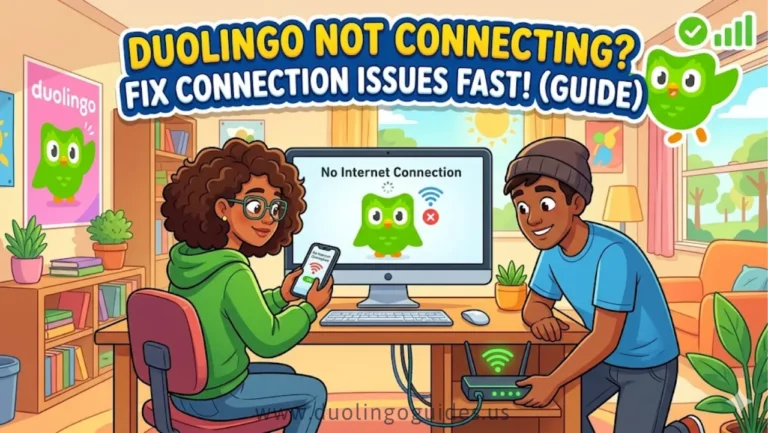
2. Check Your Internet Connection
A weak or unstable connection can prevent Duolingo from loading profile information correctly.
Try these quick checks:
- Switch from Wi-Fi to mobile data.
- If you are using mobile data, switch back to Wi-Fi.
- Open another website or app to confirm that your connection works.
- Move closer to your Wi-Fi router if the signal is weak.
- Check that you have enough mobile data available.
If other apps are also having connection problems, the issue is more likely related to your network than your Duolingo account.
3. Restart Your Router
If your internet appears to be the problem, restart your router.
Turn the router off and wait about 10 seconds before turning it back on. Allow the connection to return, then open Duolingo again.
This simple step can resolve temporary network problems that prevent the app from communicating properly with Duolingo’s servers.
4. Restart Your Phone or Tablet
If changing the network does not help, restart your device.
A restart can clear temporary background problems and give Duolingo a fresh connection to the service.
This is particularly useful when the app behaves differently after an update or when another application has affected normal device performance.
5. Clear the Duolingo App Cache
A damaged or outdated cache can sometimes cause an app to behave incorrectly.
On Android, the general process is:
- Open Settings.
- Go to Apps.
- Select Duolingo.
- Open the storage or app-storage section.
- Clear the cache.
- Open Duolingo again.
Clearing the cache is different from deleting your account. If you are concerned about your learning progress, make sure you can sign back into the correct Duolingo account before performing more advanced troubleshooting.
6. Update the Duolingo App
An outdated app can contain bugs or compatibility problems that have already been fixed in a newer release.
For Android:
- Open the Google Play Store.
- Search for Duolingo.
- Check whether an update is available.
- Tap Update.
- Open Duolingo after the update finishes.
For iPhone or iPad:
- Open the Apple App Store.
- Tap your profile icon.
- Check the available updates.
- Find Duolingo.
- Tap Update if one is available.
After updating, restart Duolingo and check your profile again.
7. Log Out and Sign Back In
If the app itself is working but your profile remains unavailable, your account session may not be synchronizing correctly.
If you can access the account settings, log out of Duolingo and then sign back in using the same account credentials.
Before doing this, make sure you know which email or login method is connected to your Duolingo account.
After signing in, give the app a moment to synchronize your profile and progress.
8. Check Your Email Verification and Account Status
Account-related issues can also interfere with profile access.
Check whether your Duolingo account requires email verification or whether there are any account restrictions affecting access.
If you recently changed account information, payment information, or subscription details, make sure the account you are using in the app is the correct one.
This is particularly important for users who have Super Duolingo because subscription problems can sometimes become mixed up with ordinary app-access problems.
9. Fix Duolingo on iPhone or iPad
If you use iOS, check Duolingo’s permissions and available device storage.
Start by opening your iPhone or iPad settings and checking Duolingo’s available permissions.
You should also check your storage:
Settings → General → iPhone Storage
If your device is almost full, remove unnecessary files or unused apps to create some free space.
You can also consider offloading apps that you do not currently need.
After freeing storage, restart Duolingo and check whether the profile is available again.
10. Fix Duolingo on Android
Android users have a few additional settings worth checking.
Open:
Settings → Apps → Duolingo
Then review the app’s permissions and data-related settings.
If available on your device, make sure Duolingo is allowed to use background data. Also check the app’s data usage settings to make sure the connection has not been restricted.
Android menus can differ between manufacturers, so the exact names of these options may vary.
11. Check for Background Data Restrictions
If Duolingo works sometimes but cannot consistently load profile information, background data restrictions could be interfering with communication.
On Android, open Duolingo’s app settings and check its Data Usage or similar network settings.
Make sure the app is not being prevented from using mobile or background data.
After changing the setting, reopen Duolingo and test the profile.
12. Reinstall the Duolingo App
If none of the previous solutions work, reinstalling the app can provide a cleaner reset.
Before uninstalling Duolingo, make sure your learning progress is synchronized with your account and that you know how to sign back in.
Then:
- Uninstall Duolingo.
- Restart your device if necessary.
- Open the Google Play Store or Apple App Store.
- Search for Duolingo.
- Install the app again.
- Sign in to your existing account.
- Check your profile.
Do not create a new account simply because your profile does not immediately appear. First sign in with the account you were previously using.
13. Test Duolingo on Another Device
Testing your account on another device can help identify where the problem is coming from.
For example, if your profile works correctly on another phone or tablet, the original device may be responsible for the problem.
You can also try the Duolingo web version.
This creates a useful distinction:
- If the profile works elsewhere, the problem may be related to your app or device.
- If the profile fails across multiple devices, the issue may be account-related or server-side.
14. Check Whether Duolingo Servers Are Down
Sometimes there is nothing wrong with your phone, internet connection, or account.
Duolingo can experience temporary server problems, maintenance, technical issues, or periods of unusually high traffic.
Before spending a long time changing device settings, check whether Duolingo itself is experiencing an outage.
You can check the official Duolingo status page here: Duolingo System Status
If the service is experiencing an issue, repeatedly reinstalling the app is unlikely to solve the problem. In that situation, the best option is usually to wait until the service is restored.
15. Check Duolingo Support and Official Updates
If the problem continues and there is no obvious server outage, check Duolingo’s support resources and official communication channels.
This is especially useful when:
- The problem started suddenly.
- Several devices show the same error.
- Your internet connection works normally.
- Reinstalling the app did not help.
- Your profile cannot be accessed from both the app and web version.
A widespread problem may require action from Duolingo rather than another change on your device.
16. What If Duolingo Still Does Not Work?
If you have completed the troubleshooting steps above, use the results to narrow down the cause rather than repeating the same fixes.
If only your phone has the problem, focus on the app, device settings, cache, storage, permissions, and network.
If multiple devices have the same problem, investigate your account or Duolingo’s service status.
If both the app and web version fail to load your profile, the issue is less likely to be a simple phone problem.
If other apps also cannot connect to the internet, troubleshoot your Wi-Fi or mobile data connection first.
A Simple Troubleshooting Order
For the fastest approach, try these steps in order:
- Force close Duolingo.
- Reopen the app.
- Check your internet connection.
- Switch between Wi-Fi and mobile data.
- Restart your router and wait 10 seconds before turning it back on.
- Restart your phone or tablet.
- Clear the Duolingo cache on Android.
- Update Duolingo.
- Log out and sign back in.
- Check account and email verification issues.
- Check device permissions, storage, and background data.
- Reinstall Duolingo after confirming your progress is synchronized.
- Test your account on another device or the web version.
- Check Duolingo’s server status.
- Contact Duolingo support if the problem continues.
Will Reinstalling Duolingo Delete My Progress?
Reinstalling the app does not mean you should intentionally start over with a new account.
The important step is to make sure your progress is synchronized with your existing Duolingo account before removing the application.
After reinstalling, sign in to the same account rather than creating a new one.
If you are unsure which account you used, stop before uninstalling and confirm your login details first.
Why Does Duolingo Keep Showing the Error?
There is no single guaranteed cause.
The error can result from a temporary app glitch, connectivity problem, outdated application, cache issue, account synchronization problem, device restriction, third-party interference, server maintenance, or high traffic.
That is why restarting the app may solve the problem for one person while reinstalling or waiting for a server-side issue to be resolved may be necessary for another.
How Long Should You Wait Before Trying Again?
There is no fixed outage duration given in the troubleshooting information.
If your internet connection is working, the app is updated, your device is functioning normally, and the same profile problem appears across different devices, avoid repeatedly reinstalling the application.
Instead, check Duolingo’s service status and wait for any reported server-side issue to be resolved.
Final Thoughts
The “Profiles Are Currently Unavailable” error does not automatically mean that your Duolingo account or learning progress has been lost.
Start with the simple fixes: restart the app, check your connection, switch between Wi-Fi and mobile data, restart your device, and update Duolingo. If those steps fail, move to cache, account, permissions, background-data, and reinstall troubleshooting.
The most important thing is to identify whether the problem is coming from your device, connection, account, or Duolingo’s servers. That approach saves time and helps you avoid unnecessary resets.
Frequently Asked Questions
Why are my Duolingo profiles currently unavailable?
The problem may be caused by an internet connection issue, app glitch, outdated app, cache problem, account synchronization issue, device restriction, or a temporary Duolingo server problem.
Can I fix the problem by restarting Duolingo?
Yes. Force-closing and reopening the app is a good first step because temporary app glitches can prevent profile information from loading correctly.
Should I switch from Wi-Fi to mobile data?
Yes. Switching between Wi-Fi and mobile data is a quick way to determine whether your current network connection is causing the problem.
Should I clear Duolingo’s cache?
Android users can try clearing the Duolingo cache if the app is behaving incorrectly. It is a useful troubleshooting step before reinstalling the application.
Should I reinstall Duolingo?
Reinstalling can help when the app has persistent glitches or corrupted local data. Before doing it, make sure your progress is synchronized and that you can sign back into your existing account.
Does the error affect both Android and iPhone?
The troubleshooting information applies to both major mobile platforms: Android and iOS. The exact settings and menu names can differ between devices.
What if Duolingo works on another device?
If your profile works on another phone, tablet, or the web version, the problem is more likely connected to the original device, app installation, permissions, or network.
What if none of these fixes work?
Check Duolingo’s server status first. If the service is operational and the problem continues across multiple devices, the issue may require account-specific assistance from Duolingo support.

I’m a website professional with 5 years of experience in building, managing, and growing online content platforms. As the creator of DuolingoGuides.us, I focus on providing helpful, easy-to-understand guides and resources for Duolingo users and language learners. My goal is to make information simple, accurate, and accessible for everyone.