Why Does Duolingo Say I’m Offline? 10 Easy Fixes That Work
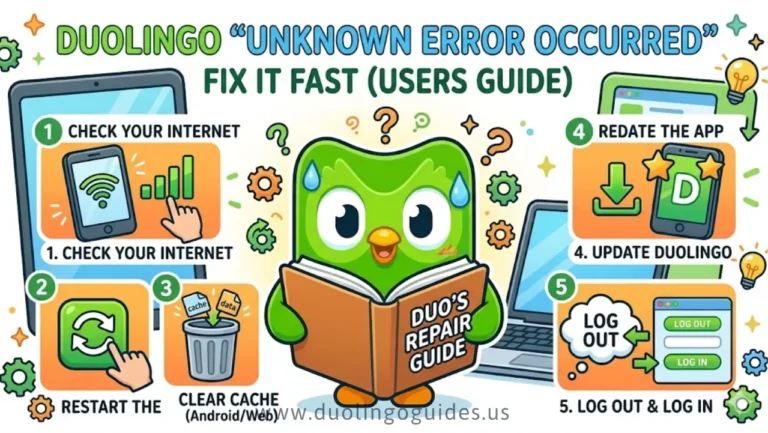
Seeing the “I’m offline” message in Duolingo can be frustrating, especially when your Wi-Fi or mobile data appears to be working normally. The message usually means that the Duolingo app or website cannot establish a stable connection with Duolingo servers. As a result, new lessons may fail to load, downloaded content may not work correctly, and your lesson progress may not sync immediately.
The problem can come from an unstable internet connection, a temporary app glitch, corrupted cache or app data, restricted background data, an outdated app, VPN or firewall interference, or a temporary server issue. The good news is that most cases can be fixed with a few simple checks.
What Does the “I’m Offline” Message Mean?
The offline message does not always mean that your entire phone or computer has lost internet access. Sometimes other apps and websites will work normally while Duolingo still cannot connect.
Duolingo needs an active connection to communicate with its servers for several activities, including loading new lessons, synchronizing progress, updating XP, restoring account information, and saving activity across devices.
If the connection between your device and Duolingo is interrupted, you may notice that lessons stop loading, the app remains stuck in offline mode, or progress appears different on two devices.
If you have previously downloaded offline lessons, some learning activities may still be available. However, progress may remain stored locally until your device reconnects and successfully syncs with Duolingo.
The Most Common Reasons Duolingo Says You Are Offline
| Possible cause | What happens |
|---|---|
| Unstable Wi-Fi or mobile data | Duolingo cannot maintain a reliable connection |
| Temporary app glitch | The app incorrectly remains in offline mode |
| Duolingo server issue | Multiple users may experience loading or syncing problems |
| Outdated app | An older version may have connection or compatibility problems |
| Cache or app data problem | Corrupted temporary files can interfere with normal operation |
| Data or battery restrictions | Android or iOS settings may limit the app’s connectivity |
| VPN, firewall, or browser extension | Network or privacy tools may block requests |
| Incomplete offline downloads | Downloaded lessons may fail to open correctly |
The fastest way to identify the cause is to start with the internet connection and server status before making major changes to the app.
Check Your Internet Connection First
Even if your Wi-Fi icon shows a connection, the network itself may be unstable or temporarily unable to reach Duolingo.
Try opening another website or using another internet-based app. Then switch from Wi-Fi to mobile data or from mobile data back to Wi-Fi. If Duolingo starts working after switching networks, the original connection was likely the problem.
You can also restart your router or modem. Unplug it, wait about 30 seconds, reconnect it, and allow the internet connection to return before opening Duolingo again.
On a computer, an Ethernet connection can also help determine whether the problem is related to Wi-Fi stability.
Restart Duolingo and Your Device
A temporary app bug can cause Duolingo to display the offline message even after your connection has returned.
Completely close Duolingo instead of simply leaving it running in the background. Wait a few seconds and open it again.
If the message continues to appear, restart your Android phone, iPhone, iPad, or computer.
You can also try a quick network reset by turning Airplane Mode on for around 10 seconds and then turning it off. This forces the device to reconnect to available networks.
Check Whether Duolingo Is Having a Server Problem
Sometimes the issue is not caused by your phone, Wi-Fi, or account.
If Duolingo servers are experiencing maintenance, unusually high traffic, or a technical outage, you may see problems such as lessons failing to load, progress not syncing, repeated internet connection errors, or the app appearing permanently offline.
Before deleting app data or reinstalling the app, check whether other users are reporting similar problems. Downdetector can sometimes help identify widespread reports, while Duolingo’s official channels may provide updates about major service issues.
If the problem is server-related, the best solution may simply be to wait until normal service is restored.
Make Sure Duolingo Is Updated
An outdated version of Duolingo may contain bugs or compatibility issues that have already been fixed in a newer release.
On Android, open the Google Play Store, find Duolingo, and install any available update.
On an iPhone or iPad, open the App Store, search for Duolingo, and select Update if it is available.
After updating, fully close the app and reopen it before testing another lesson.
It is also worth keeping Android or iOS reasonably up to date, particularly if several apps are experiencing network or synchronization problems.
Check Mobile Data, Permissions, and Background Access
Duolingo may have an internet connection problem because your device is restricting how the app uses data.
On Android, check whether Duolingo is allowed to use mobile data, background data, and necessary network permissions. Battery optimization or aggressive performance settings can sometimes stop apps from maintaining normal background activity.
Some devices with customized Android software, including certain MIUI or ColorOS configurations, may use aggressive app management. If Duolingo repeatedly disconnects or fails to sync, check whether battery saving or background restrictions are limiting it.
On iOS, make sure Duolingo is allowed to use mobile data if you want it to work away from Wi-Fi. You can also check Background App Refresh if progress or app activity is not updating normally.
Clear Cache or Refresh App Data
Temporary files can occasionally become corrupted and cause loading or connection problems.
On Android, clearing the cache is usually a reasonable first step. Open your device settings, find Duolingo under Apps, and use the available cache-clearing option.
Be careful with Clear Data or Clear Storage because this may reset local app settings and downloaded content. Make sure you know the login details for your Google account or Duolingo account before taking more disruptive steps.
On iPhone and iPad, iOS does not provide the same universal cache-clearing option used on Android. Depending on your device and available settings, you may need to offload or reinstall the app to refresh its stored files.
After signing back in, use the same account associated with your Duolingo progress.
Downloaded Offline Lessons Are Not Working
Offline lessons can be useful when you expect to lose internet access, but they may not behave exactly like the fully connected experience.
If downloaded lessons fail to open, reconnect to a stable network and open Duolingo again. Check whether the lesson downloads completed successfully and allow them to finish before changing networks or closing the app.
Avoid frequently switching between accounts while offline content is downloading. If a download appears incomplete, refreshing or downloading the content again while connected may resolve the problem.
After reconnecting to the internet, give Duolingo time to synchronize your completed activity. Progress completed offline may not appear instantly across every device.
Fix Duolingo Offline Problems on Android
Android users have a few additional troubleshooting options because the operating system provides more direct control over app storage, data use, and battery management.
Start by restarting the phone and checking for a Duolingo update through the Google Play Store. Then test both Wi-Fi and mobile data.
If the problem continues, clear the app cache and review background data settings. Also check whether Battery Saver or device-specific optimization is restricting Duolingo.
If downloaded lessons are affected, reconnect to stable internet and confirm that the downloads have completed.
A full reinstallation should usually be considered after these simpler fixes have failed.
Fix Duolingo Offline Problems on iPhone and iPad
On an iPhone or iPad, restart the device and check the App Store for a newer version of Duolingo.
Then confirm that your internet works on both Wi-Fi and mobile data. If Duolingo works on one network but not the other, the issue is likely related to that connection rather than the app itself.
You should also verify that Duolingo has permission to use mobile data when needed and review Background App Refresh settings if syncing appears delayed.
If the app remains stuck in offline mode, reinstalling it can refresh the installation and remove damaged local files.
Before deleting the app, make sure you can log back in using the correct account or Apple ID-linked credentials where applicable.
Why Does Duolingo Say Offline on the Website?
The Duolingo website normally requires an active internet connection, so browser problems can sometimes look like an app connectivity issue.
Start by refreshing the page. If that does not work, clear the browser cache and cookies or test Duolingo in a private or incognito window.
Browser extensions can also interfere with websites. Temporarily disable ad blockers, privacy tools, script blockers, or other extensions that may block network requests. Make sure JavaScript is enabled because modern web applications rely on it to load interactive content.
If Duolingo works in private browsing but not in your normal browser window, the issue may be related to cookies, cached files, or an installed extension.
More advanced users can inspect browser developer tools or the browser console for network request errors, but most users should first try clearing browser data and disabling extensions.
Could a VPN or Firewall Cause the Problem?
Yes, in some situations.
A VPN, firewall, privacy filter, or network-level security tool can interfere with the connection between your device and Duolingo servers. This is especially worth checking if the offline message started appearing immediately after installing or changing a VPN or security application.
Temporarily disconnect from the VPN and test Duolingo again. If the app starts working, review the VPN or firewall settings before turning it back on.
The same approach can help on desktop browsers where security extensions or network filters are active.
What Happens to Your Streak, XP, and Progress?
An offline message does not automatically mean that your streak, XP, Lingots, or lesson progress has been permanently lost.
The main issue is synchronization. If Duolingo cannot connect to its servers, completed activity may not immediately appear across all devices.
For example, you may complete work on one device and then see older progress on another device until synchronization finishes. Comparing your progress on 2 devices can help identify whether the problem is a syncing delay rather than missing progress.
Reconnect to a stable internet connection and open Duolingo again. If your progress does not appear after the service is working normally, avoid repeatedly changing accounts or deleting data without first confirming that you are signed into the correct account.
The Best Order to Fix the Duolingo Offline Message
To avoid wasting time, try the solutions in this order:
- Check Wi-Fi or mobile data and switch networks if possible.
- Restart Duolingo, then restart your device if necessary.
- Turn Airplane Mode on for about 10 seconds and reconnect.
- Check whether Duolingo servers are experiencing an outage.
- Update Duolingo through the Google Play Store or App Store.
- Review mobile data, background data, battery optimization, and app permissions.
- Clear cache on Android or refresh the app installation on iOS.
- Test browser cache, cookies, JavaScript, and extensions if using Duolingo on the web.
- Temporarily disable a VPN, firewall, ad blocker, or privacy tool.
- Reinstall Duolingo if the problem still continues.
This order starts with simple fixes and leaves more disruptive steps, such as deleting or reinstalling the app, until later.
When Should You Reinstall Duolingo?
Reinstallation can help when the app installation itself is damaged or when cache and update checks have not solved the problem.
Remove Duolingo from your Android device or iPhone, then reinstall the official app through the Google Play Store or App Store.
After installation, sign in with the same Duolingo, Google, or Apple-linked account that contains your learning progress.
Remember that reinstallation may remove downloaded offline lessons and locally stored app settings, so it should not be the first step if a simple network restart is likely to solve the issue.
Contact Duolingo Support if Nothing Works
If Duolingo still says you are offline after testing multiple networks, updating the app, checking server status, and reinstalling, contact Duolingo Support.
A useful support ticket should clearly explain what happens and include your device type, Android or iOS version, Duolingo app version, the network you tested, and any error message you see.
If possible, include screenshots and explain whether the problem happens on Wi-Fi, mobile data, or both.
Some support responses may take around 48–72 hours, although response times can vary depending on the issue and support demand.
How to Prevent the Offline Error in the Future
Keeping Duolingo and your device updated can reduce the chance of app-related connection problems. Use a stable Wi-Fi connection when downloading offline lessons and allow downloads to finish before switching networks.
Avoid unnecessary network changes during large lesson downloads, and check whether VPNs, firewalls, ad blockers, or privacy tools are interfering if the issue appears repeatedly.
On Android, make sure background data and battery settings are not aggressively restricting Duolingo. On iPhone and iPad, check mobile data access and Background App Refresh when synchronization seems delayed.
Final Thoughts
If Duolingo says “I’m offline,” the cause is usually a connection problem, temporary app glitch, device restriction, or server issue. Start with the easiest fixes: test Wi-Fi and mobile data, restart the app, and check whether Duolingo is experiencing an outage.
If the issue continues, update the app, review data and battery settings, clear the cache where available, and reinstall Duolingo as a final troubleshooting step. In most cases, reconnecting successfully allows your lessons, XP, progress, and other account data to synchronize again.
Frequently Asked Questions
Why does Duolingo say I’m offline when my internet is working?
Duolingo may be unable to connect even when other apps work. Possible causes include an app glitch, corrupted cache, restricted background data, VPN interference, browser extensions, or a temporary Duolingo server issue.
Will I lose my streak if Duolingo says I’m offline?
Not necessarily. An offline message mainly affects connectivity and synchronization. Your activity may sync after you reconnect, although you should verify your account and progress once Duolingo is online again.
Can I use Duolingo without the internet?
Some downloaded offline lessons may be available without an active connection, but functionality can be limited. Internet access is generally needed to load new content and synchronize progress.
How long should I restart my router?
You can unplug the router or modem for about 30 seconds, then reconnect it and wait for the network to return before testing Duolingo again.
How long should I wait after using Airplane Mode?
Turning Airplane Mode on for around 10 seconds before switching it off can help refresh your device’s network connection.
Why is Duolingo not syncing between my two devices?
Progress may not update immediately if one device was offline or experiencing a connection problem. Reconnect both devices, open Duolingo, and allow time for synchronization to complete.
Should I clear Duolingo app data?
Try clearing the cache first on Android. Clearing app data or storage can remove local settings and downloaded lessons, so make sure you know your login information before using that option.
How long does Duolingo Support take to respond?
Response times can vary. Some users may receive a reply within approximately 48–72 hours, while more complex or high-volume periods may take longer.

I’m a website professional with 5 years of experience in building, managing, and growing online content platforms. As the creator of DuolingoGuides.us, I focus on providing helpful, easy-to-understand guides and resources for Duolingo users and language learners. My goal is to make information simple, accurate, and accessible for everyone.