How To Reset Duolingo (Step-by-Step Guide for Beginners)
If you’ve ever stared at your Duolingo streak and thought, “I wish I could start over,” you’re not alone. Many English-language learners in the United States use Duolingo to practice Spanish, French, or German, only to realize they’re rushing through lessons or stuck in a routine that no longer helps.
The good news: you can reset your course and begin again with a clean slate—without deleting your entire account. This guide walks you through every step in plain English so that beginners can move confidently and safely.
Should You Reset Duolingo?
Resetting Duolingo is a powerful but irreversible option for a single-language course. Think of it as restarting a video game level: you keep your account, friends, and subscriptions, but that course’s progress, lessons, and practice data are erased.
When to reset
- You’ve burned through lessons too quickly and barely remember anything.
- You want to build a stronger foundation in a language before moving to advanced units.
- Your course feels outdated or cluttered after Duolingo’s frequent updates.
When NOT to reset
- If you only want to skip a few lessons—use the Placement Test instead.
- If you’re close to earning a milestone (e.g., 1-year streak) and want to keep it.
- If you’re unsure—backup data by saving screenshots or notes first.
What Happens When You Reset Duolingo?
Resetting a course permanently deletes your progress for that language, including completed lessons, XP, and practice history.
Progress loss
- All lessons, skills, and practice sessions for that language are removed.
- You’ll start from the beginning of the course when you re-add it.
Streak impact
- Your overall streak (if you’re learning multiple languages) may drop if that course was your only active one.
- Other languages and subscriptions remain unaffected.
Data reset explanation
- Duolingo doesn’t store backup versions of your progress; once reset, it’s gone.
- This design encourages intentional practice and prevents accidental resets.
How To Reset Duolingo (Step-by-Step)
You can reset on desktop or mobile; the process is similar but slightly different for each platform.
Reset on Desktop
- Open Duolingo in your browser and log in.
- Click your Profile icon in the top-right corner.
- Select Settings (gear icon), then Manage Courses.
- Find the course you want to reset and click Remove.
- Confirm the reset; the course disappears.
- Re-add the course: choose Start from Scratch to begin fresh.
Reset on Mobile App
- Open the Duolingo app on your iPhone, iPad, or Android device.
- Tap the Account icon in the bottom menu.
- Open Settings (gear icon) and go to Manage Courses.
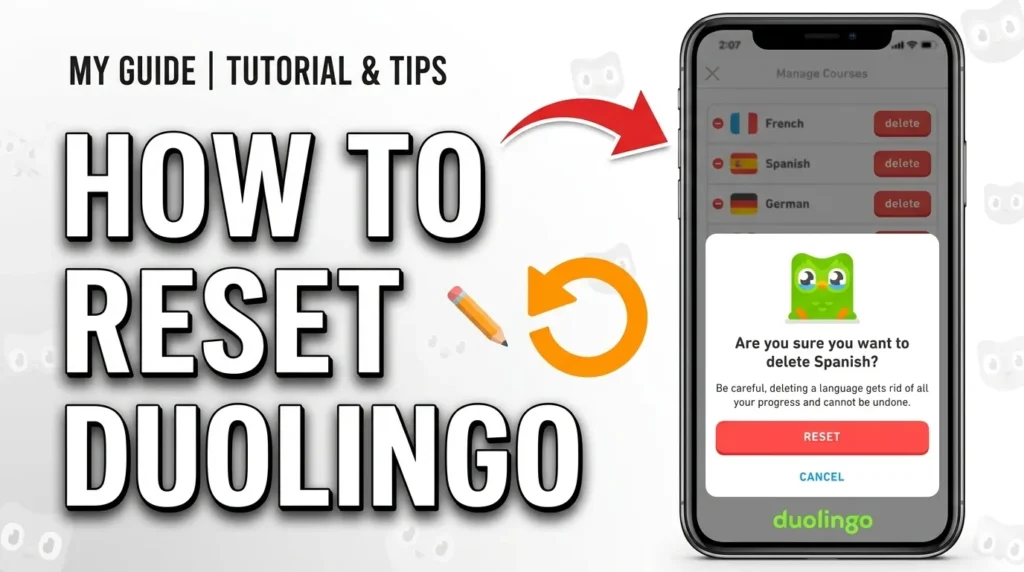
- Select the course, tap the delete/remove icon, and confirm.
- Re-add the course: choose Start from Scratch or Placement Test.
How To Reset Only One Language Course
Duolingo lets you reset a single course without touching others, ideal for English-language learners juggling multiple languages.
- Open Manage Courses on desktop or mobile.
- Identify the target language (e.g., Spanish for ESL in the USA).
- Tap Remove and confirm; only that course’s progress is deleted.
- Re-add it: choose Start from Scratch for a fresh start.
Reset Not Working? (Fix It Fast)
If the reset fails, common issues include app glitches or outdated versions.
Common issues
- App crashes: Update Duolingo to the latest version.
- No reset button visible: Use the browser version on desktop.
- Course stuck: Clear cache or reinstall the app.
Quick fixes
- Restart your device and try again.
- Contact Duolingo support if progress doesn’t reset.
Alternatives to Resetting Duolingo
You don’t always need a full reset; alternatives save time and data.
- New account: Create a fresh account for a new language, keeping the old one intact.
- Placement Test: Skip ahead in a course without losing progress.
- Switching courses: Add a new language instead of resetting.
What To Do After Reset (Start Smarter)
After resetting, build a smarter learning plan to avoid mistakes.
Learning plan
- Set daily goals (e.g., 15 minutes) using Duolingo’s reminders.
- Focus on weak skills first, like grammar or vocabulary.
Mistake avoidance
- Don’t rush lessons; review errors before moving on.
- Use streak rewards to motivate consistent practice.
Frequently Asked Questions
How do I Reset my Duolingo progress?
Follow the Manage Courses steps above to remove and re-add a course.
Why is resetting Duolingo necessary?
To rebuild a solid foundation or start fresh after updates.
Can I reset a skill in Duolingo?
No; you must reset the entire course and re-add it.
Is there a way to reset a lesson in Duolingo?
No direct reset; use the lesson again or reset the course.
How do I reset Duolingo to start from the beginning?
Remove the course, then choose Start from Scratch when re-adding.
How do I get Duolingo back to normal?
Re-add the course or use the Placement Test to resume.
How to reset duo progress?
Same as above; reset the course via Manage Courses.
How do I get Started on Duolingo?
Sign up, choose a language, and begin the first lesson.
Conclusion
Resetting Duolingo is a simple, powerful tool for beginners to start fresh without losing their account. By following these steps, you gain a clean slate for English-language practice in the USA, setting you up for smarter, mistake-free learning. Use reset strategically, not impulsively, and pair it with a solid plan for lasting progress.

I’m a website professional with 5 years of experience in building, managing, and growing online content platforms. As the creator of DuolingoGuides.us, I focus on providing helpful, easy-to-understand guides and resources for Duolingo users and language learners. My goal is to make information simple, accurate, and accessible for everyone.