How to Fix Duolingo Family Plan Invite Not Working
A Duolingo Family Plan invitation should normally make it easy for another person to join the shared Super Duolingo subscription. However, sometimes the invite link does not open, the invitation expires, the member cannot join, or the Family Plan is accepted but the Super benefits never appear.
The good news is that most invite problems can be narrowed down by checking the invitation, email address, subscription status, account, app, and device in the right order.
The Duolingo Family Plan can include up to 6 people in total: the Family Manager plus 5 other members. Because the invitation is connected to a specific Duolingo account, even a small account or subscription conflict can prevent the benefits from appearing correctly.
This guide walks through the most useful fixes, starting with the simplest checks and moving toward account-level and support solutions.
First, Identify What Is Actually Going Wrong
Before changing anything, determine which situation matches your problem.
If the invitation link does not open, the problem is probably related to the link, browser, sharing method, or invitation status.
If the link opens but you cannot join, check your Duolingo account and existing subscription.
If you accepted the invitation but still see an option to upgrade to Super Duolingo, the Family Plan may not have synchronized with your account.
If the Family Plan worked previously but suddenly disappeared, check the subscription status, account, app version, and Family Plan membership.
If you cannot invite someone at all, the Family Manager should check whether the plan already contains 6 total members.
Check Whether the Family Plan Has Available Space
The Family Manager can have 5 other people in addition to the manager, giving the plan a maximum of 6 total members.
If all available places are already occupied, a new invitation may not work as expected.
Open the Family Plan membership area and review the current members. If necessary, remove an inactive member before trying to add someone else.
It is also worth confirming that the Family Manager’s subscription is still active. An expired plan cannot provide active Family benefits to new members.
Check the Invitation Link Carefully
A damaged or incomplete invitation link is one of the easiest problems to overlook.
If someone copied the invitation manually, make sure the entire link was copied. Avoid adding spaces or changing any characters.
If the original invitation no longer works, ask the Family Manager to create or send a fresh invitation rather than repeatedly trying an old link.
An invitation may also expire. One troubleshooting source reports a 7-day acceptance period, so if the invitation is several days old, sending a new one is a sensible first step.
Try opening the invitation directly rather than copying it through several different apps. If the link was shared through WhatsApp, for example, try email or a text message instead.
Try a Different Way of Opening the Invite
Sometimes the problem is not the invitation itself but the application or browser handling the link.
If the invitation was opened inside a messaging app, copy it and open it in a normal browser.
You can also try the Duolingo website instead of the mobile application.
On a computer, refresh the browser using F5, then open the invitation again. If that does not help, try another browser.
This is particularly useful when an old login session or cached page is preventing Duolingo from recognizing the invitation correctly.
Check the Email Address Connected to Duolingo
The invitation needs to reach the correct account.
Open your Duolingo account settings and verify that the email address is correct. Look carefully for spelling mistakes, missing characters, or an outdated address.
Also check the spam or junk folder. An invitation email can be overlooked when it does not appear in the main inbox.
If necessary, confirm the account’s email address before asking the Family Manager to send another invitation.
Do not create multiple Duolingo accounts simply because an invitation does not appear. First determine which account should receive and use the Family Plan membership.
Check for an Existing Super Duolingo Subscription
An existing Super Duolingo subscription can create a subscription conflict.
If the invited person already pays for Super Duolingo individually, check the current subscription before attempting to join the Family Plan.
The important question is whether the existing subscription is still active and how it was purchased. Subscription status can affect when an account becomes eligible to use another subscription arrangement.
If the account already has Super, do not immediately assume the Family invitation failed. First confirm whether the account is still attached to its existing subscription.
Confirm That the Invitation Was Accepted by the Correct Account
This is especially important when a person uses multiple Duolingo accounts.
For example, someone may open the invitation while logged into one account but expect the Family benefits to appear on another account.
After accepting the invitation, check the profile and account settings. Confirm that the account currently signed in is the account that was supposed to receive the Family Plan membership.
If the wrong account accepted the invitation, signing out and entering the correct account may resolve the confusion.
What to Do If You Accepted the Invite but Super Is Missing
This is a different problem from a completely broken invitation.
The invitation may have been accepted successfully while the subscription information has not synchronized with the app.
Open Duolingo and go to your Profile, then open Settings using the gear icon. Look for the Super Duolingo subscription information.
If your account shows that you are already using Super Duolingo, the Family Plan benefits may have been applied successfully even if another part of the application has not refreshed yet.
If the account still displays an option to upgrade, the Family membership may not have been activated correctly.
At this point, refresh the app and sign out and back in before making any other changes.
Sign Out and Sign Back In
A fresh login can force the application to retrieve updated account and subscription information.
Sign out of Duolingo completely, close the application, and then open it again.
Sign back into the account that accepted the Family invitation.
After logging in, return to the profile and settings area and check the Super Duolingo status again.
This simple step is especially useful when the invitation was accepted but the benefits are missing.
Update the Duolingo App
An outdated application can cause synchronization and account-display problems.
Check whether a newer Duolingo version is available through your device’s app store. If an update is available, install it and then reopen the application.
After updating, sign out and back in if the Family Plan information still does not appear.
The same principle applies to desktop users: keep the browser updated and try the Duolingo website again after refreshing the session.
Clear Cache and Cookies
Cached information can sometimes cause an old version of a page or account session to remain visible.
If you are using Duolingo through a browser, clear the browser cache and cookies, then reopen the site.
You can also test the invitation in a private or incognito browser window. If the invitation works there, the problem may be related to stored browser data or the current login session.
If you are using the mobile application, clearing the app cache where your device provides that option can also help.
Try Another Browser or Device
If the invitation works on another device, the problem is probably local to the original device rather than the Family Plan itself.
For example, try opening the invitation on a computer if it failed on an iPhone or iPad. Likewise, try another browser if the link does not work in your usual browser.
Updating the operating system and restarting the device can also eliminate temporary software problems.
The goal is not to keep changing devices permanently. It is to determine whether the problem follows the account or stays with one device.
Check Your Internet Connection
A weak or unstable connection can interrupt account synchronization.
Try switching between Wi-Fi and mobile data and then reopen Duolingo.
If the Family Plan status changes after reconnecting, the original problem may have been a temporary connection or synchronization failure.
For persistent problems, test another network before assuming that the invitation itself is broken.
Try Adding the Member Directly
If the Family Manager has access to the member-management options, direct member addition can be useful when the invitation link is repeatedly failing.
Look for Add Member and, where available, use the additional options to select the intended person from the account or member list.
This avoids depending entirely on a link sent through email, WhatsApp, or text message.
If direct addition is unavailable, return to the normal invitation process and generate a fresh invitation.
Check Account Eligibility and Restrictions
Not every account problem is caused by the invitation.
Review whether the account has restrictions that could affect joining or participating in the Family Plan. Previous membership, account type, region settings, privacy controls, parental controls, or organizational accounts may affect what options are available.
For users connected to Duolingo for Schools, it is also worth checking whether they are using the correct personal account rather than an organizational or school-managed account.
The important step is to determine whether the account itself can participate before repeatedly sending invitations.
Check Privacy and Account Settings
Privacy settings can sometimes affect social and invitation-related features.
Review the account’s privacy settings and make sure relevant social features are not unnecessarily restricted.
If parental controls or other account restrictions are active, check whether they are preventing invitations, family interactions, or related features.
Do not change settings randomly. Compare the affected account with a normal personal Duolingo account and identify which restriction is actually relevant.
Check Whether the Family Plan Is Still Active
The Family Manager should verify the subscription status before troubleshooting the invited member’s device.
Check the payment status, subscription expiration, and current membership list.
If the plan has expired, renewing it may be necessary before members can continue receiving the included Super benefits.
If the plan is active and there are fewer than 6 total members, the problem is more likely to involve the invitation, account, app, or synchronization.
| Problem | What to Check First | Best Next Step |
|---|---|---|
| Invite link will not open | Link, browser, sharing method | Copy the link again and try another browser |
| Invitation has expired | Invitation age | Request a fresh invitation |
| Invite opens but joining fails | Account and subscription | Check the existing Super subscription |
| Invite accepted but Super is missing | Profile and Settings | Sign out, sign back in, and check Super status |
| Email not received | Email address and spam folder | Verify the email and resend the invite |
| Member cannot be added | Family membership count | Check the 6-member limit |
| App does not update membership | App version/cache | Update the app and clear cache |
| Browser behaves incorrectly | Cache/cookies/session | Clear browser data or use another browser |
| Everything appears correct but it still fails | Account/server/support issue | Contact Duolingo Support |
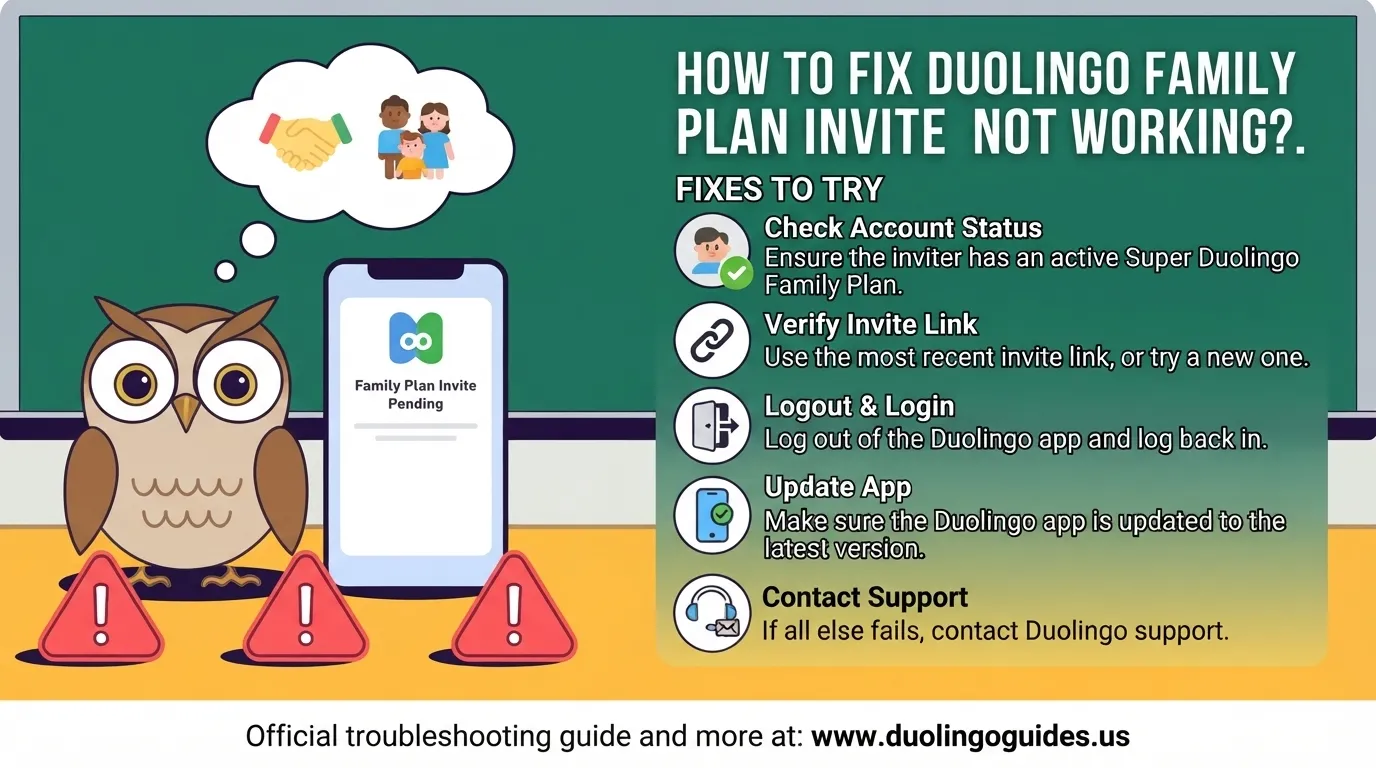
Use This 5-Step Fix Order
For most users, there is no reason to try every possible solution at once. Follow this order:
- Check the Family Plan: Confirm it is active and has fewer than 6 total members.
- Check the invitation: Make sure the link is complete, current, and sent to the correct email/account.
- Check the account: Look for an existing Super subscription, account restrictions, or the wrong logged-in account.
- Refresh the app or browser: Update Duolingo, clear cache/cookies, refresh the page, and sign out and back in.
- Contact support: If the account, plan, invitation, and device all look correct but the membership still does not activate, ask Duolingo Support to check the subscription and account connection.
What If the Invite Works but Family Benefits Still Do Not Appear?
Do not immediately accept another invitation or create another account.
First confirm whether the account already shows Super Duolingo.
If Super is visible in the account, the Family Plan may already be active and the issue could simply be a display or synchronization delay.
If the account continues to show Upgrade, sign out and back in, update the app, clear cache, and check the account again.
If the status still does not change, the Family Manager should verify that the membership is still active and that the invited person is actually listed as a member.
What If the Family Quest Is Not Updating?
Family Plan problems can sometimes be confused with Family Quest problems because both involve shared account features.
If a Family Quest does not appear, does not update, or does not complete, check the app version, internet connection, account synchronization, eligibility, and settings.
A quest may also fail to update immediately when account data has not synchronized correctly.
If the required activity was completed but the progress remains unchanged, refresh the app and give the account another synchronization attempt before assuming that the reward has been lost.
What If XP or Progress Is Not Updating?
XP-related problems can have a similar appearance to Family feature problems.
First confirm that the activity actually completed and that the XP appears in the relevant account history.
Then check the internet connection and app version.
If the account is showing different information on different devices, sign out and back in on the affected device and check again.
This helps distinguish a Family Plan membership problem from a general account synchronization problem.
When You Should Contact Duolingo Support
If you have confirmed the Family Plan is active, the member limit has not been reached, the invitation is valid, the correct account is being used, and the app or browser is updated, contacting Duolingo Support is the logical next step.
When contacting support, explain the problem clearly instead of simply saying that the invite does not work.
Include the relevant details such as whether the invitation was received, whether the link opened, whether it was accepted, whether Super Duolingo appears afterward, and whether the account already had a subscription.
This gives support a much clearer picture of where the process is failing.
FAQs
How many people can use a Duolingo Family Plan?
A Family Plan supports up to 6 total members, including the Family Manager. That means the manager can invite up to 5 other people when all places are available.
Why does my Duolingo Family invite link not work?
The link may be incorrect, expired, opened through a problematic browser session, or connected to an account that cannot accept the membership. Try a fresh invitation, another browser, and the Duolingo website.
What if I already have Super Duolingo?
Check the existing subscription before trying to join the Family Plan. An active individual subscription can create a subscription-related conflict, depending on the account and subscription arrangement.
Why did I accept the Family Plan invitation but still see Upgrade?
The account may not have synchronized the Family membership correctly. Check Profile → Settings, sign out and back in, update the app, and confirm that the Family Manager still has an active plan.
Can an expired Family invitation be used again?
If the invitation has expired, request a new invitation rather than repeatedly trying the old link. A 7-day acceptance period has been reported for invitations, so an older invitation may no longer be valid.
Why did the Family Plan disappear from my account?
First check whether the Family Manager’s subscription is active and whether your account is still listed as a member. Then update the app and sign in again.
Why can’t the Family Manager add another person?
The first thing to check is the member count. The Family Plan allows 6 total members, so the manager cannot add another person if all available places are already occupied.
Should I create a new Duolingo account if the invite does not work?
Usually, no. First verify the email address, account currently logged in, subscription status, invitation, and account restrictions. Creating another account can make the situation more confusing.
Does changing the device fix a Family Plan invitation?
It can help identify whether the problem is device-specific. If the same account works on another device or browser, the original device, app, cache, or browser session may be responsible.
Final Takeaway
When a Duolingo Family Plan invite is not working, the best approach is to troubleshoot the problem in layers rather than repeatedly requesting new invitations.
Start with the 6-member limit and active subscription, then verify the invitation and email address. Next, make sure the correct Duolingo account is being used and check for an existing Super subscription. If the invitation has already been accepted but the benefits are missing, check the Super status inside Profile and Settings, then sign out, update the app, clear cache, and try another browser or device.
Most importantly, distinguish between a broken invitation, an account/subscription conflict, and a Family Plan that was accepted but has not synchronized. Once you identify which of these three situations you have, the right fix becomes much easier to find.

I’m a website professional with 5 years of experience in building, managing, and growing online content platforms. As the creator of DuolingoGuides.us, I focus on providing helpful, easy-to-understand guides and resources for Duolingo users and language learners. My goal is to make information simple, accurate, and accessible for everyone.