How To Change The Duolingo App Icon (Step-by-Step Guide)
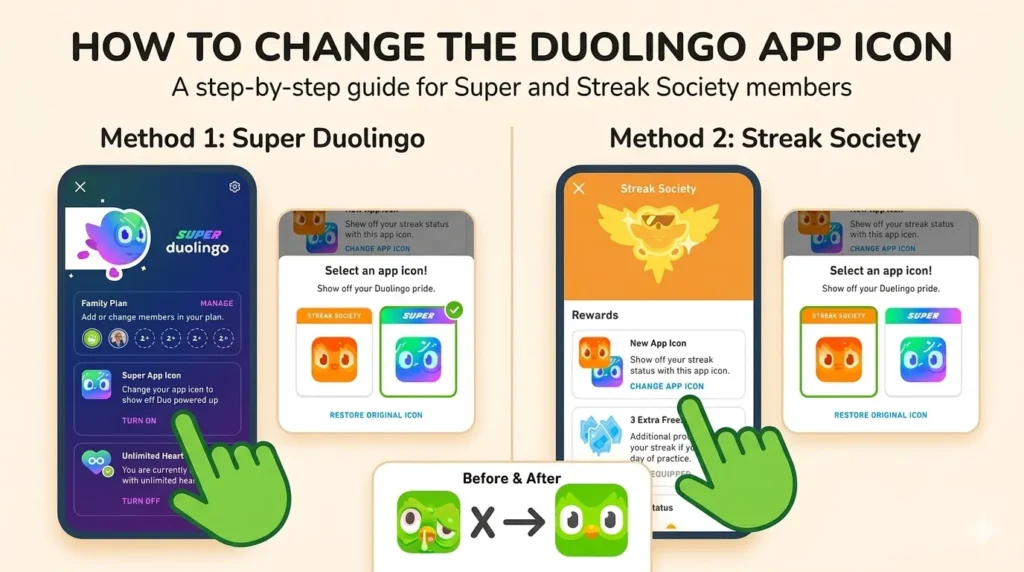
Have you ever looked at your home screen and wished your Duolingo app icon looked a bit more exciting? Many users feel a sense of frustration when they see others sporting vibrant, limited-edition, or Super Duolingo icons while their own remains the standard green owl. You might be wondering why you cannot find the setting, leading to curiosity about whether this customization is even possible on your specific device.
Can You Change the Duolingo App Icon?
The short answer is yes, but it is not a feature available to every user. Generally, the ability to switch your app icon is tied to having an active Super Duolingo or Duolingo Max subscription. If you are using the free version of the application, this specific customization menu is often hidden or inaccessible. Additionally, feature availability can sometimes vary based on your region, device type, and the specific app version currently installed.
How To Change The Duolingo App Icon (Step-by-Step)
If you have an active subscription, the process is usually straightforward and managed directly within the Duolingo interface.
On iPhone
- Open the Duolingo app on your iOS device.
- Navigate to your home screen within the app and tap the Super Duolingo or Max icon at the top.
- Scroll down to find the Manage Features section.
- Look for the Super App Icon option and tap it.
- Select your desired icon from the provided list, and a confirmation window will appear.
On Android
- Launch the Duolingo app on your Android device.
- Tap on your Profile or the Settings gear icon.
- Look for an Appearance or App Icon tab within the menu.
- If available, browse the selection and choose your preferred visual style.
- Confirm your choice to update the icon on your home screen.
Why You Can’t Find the Icon Option (Most Common Reasons)
If the settings described above are missing, your account might not be eligible for the feature. The most common reason is that you are on the free plan, which restricts access to premium cosmetic features like custom icons. Other possibilities include using an outdated version of the app or simply that the feature has not been rolled out to your specific account tier or geographic location.
Icon Not Changing? Try These Fixes
If you have a subscription but the icon refuses to change, you can try several troubleshooting steps to resolve the glitch.
- Update the app: Visit your app store to ensure you are running the latest version.
- Restart your device: This simple step often clears temporary software glitches.
- Clear cache: On Android, go to your system settings and clear the cache for Duolingo.
- Reinstall: A fresh installation can fix corrupted app data.
Do You Need Duolingo Super or Max?
The Super Duolingo and Duolingo Max subscriptions are currently the primary paths to unlocking custom icons. Free users generally do not have access to these aesthetic changes, as they are considered a perk for paid subscribers. Before attempting to change your icon, verify that your subscription status is active within your app store or profile settings.
Can You Use a Custom Icon?
While the app provides a set of official icons, you cannot natively upload your own custom images through the app settings. However, there is a popular workaround for users who want complete control over their home screen aesthetics. On iPhones, you can use the Shortcuts app to create a custom bookmark that opens Duolingo, allowing you to assign any image from your gallery as the icon. On Android, many third-party launchers allow you to long-press an icon and change it to any image from your gallery or an icon pack.
Does the Icon Change Permanently?
Most changes you make via the Super Duolingo menu are persistent until you decide to switch them again. However, keep in mind that Duolingo sometimes releases limited-time event-based icons to celebrate milestones or seasonal updates. These icons might disappear or revert to the default once the event concludes, depending on the current app policies.
Is It Safe To Use Third-Party Apps?
Using third-party apps or launchers to customize your icon is generally safe provided you download them from official app stores. Avoid downloading “modded” versions of Duolingo that promise “free premium,” as these can pose significant security risks and may result in your account being banned. Stick to legitimate shortcut methods or trusted launcher apps to keep your account secure.
Final Thoughts
Changing your Duolingo app icon is a simple way to add a personal touch to your daily language learning routine. While it is primarily a benefit for Super Duolingo subscribers, workarounds exist for those who are creative with their device settings.
Always ensure your app is fully updated to take advantage of the latest features and stability improvements. With these steps, you can easily customize your experience and keep your streak looking sharp.
FAQs
How do I change the Duolingo app icon I got a streak icon?
If you earned a special streak icon, you can usually select it via the same menu in the “Manage Features” section.
How do you change your icon on Duolingo?
Navigate to the Super tab in the app and look for the App Icon menu.
How do I change the picture on Duolingo?
If you mean your profile picture, go to your Profile settings and tap on your avatar to upload a new one.
How do you change the app icon symbol?
This is only possible through the internal app settings for subscribers or via shortcut workarounds.
How to change A Duolingo icon?
Follow the steps for iOS or Android provided above based on your device.
How do I change the look of my Duolingo app?
Aside from the icon, you can explore themes or contrast settings in the Appearance menu.
How to add Duolingo icon to home screen?
If it is missing, open your app drawer, long-press the Duolingo icon, and drag it onto your home screen.
How do I add Duolingo to my iPhone?
You can download it from the App Store and then manage its placement on your home screen by long-pressing and selecting “Edit Home Screen.”

I’m a website professional with 5 years of experience in building, managing, and growing online content platforms. As the creator of DuolingoGuides.us, I focus on providing helpful, easy-to-understand guides and resources for Duolingo users and language learners. My goal is to make information simple, accurate, and accessible for everyone.