How To Add Duolingo Widget (Complete Step-by-Step Guide)
Struggling to find the Duolingo widget on your home screen? You’re not alone — many users can’t even see the option or experience glitches when trying to set it up.
What is the Duolingo Widget
The Duolingo widget is a small, interactive tool designed to sit directly on your smartphone’s home or lock screen. It serves as a visual bridge between you and your language-learning journey, providing real-time data like your current streak count, daily progress, or a direct link to your next lesson. Users utilize this feature to maintain consistency, as the persistent presence of the widget acts as a daily accountability partner.
How to Add Duolingo Widget
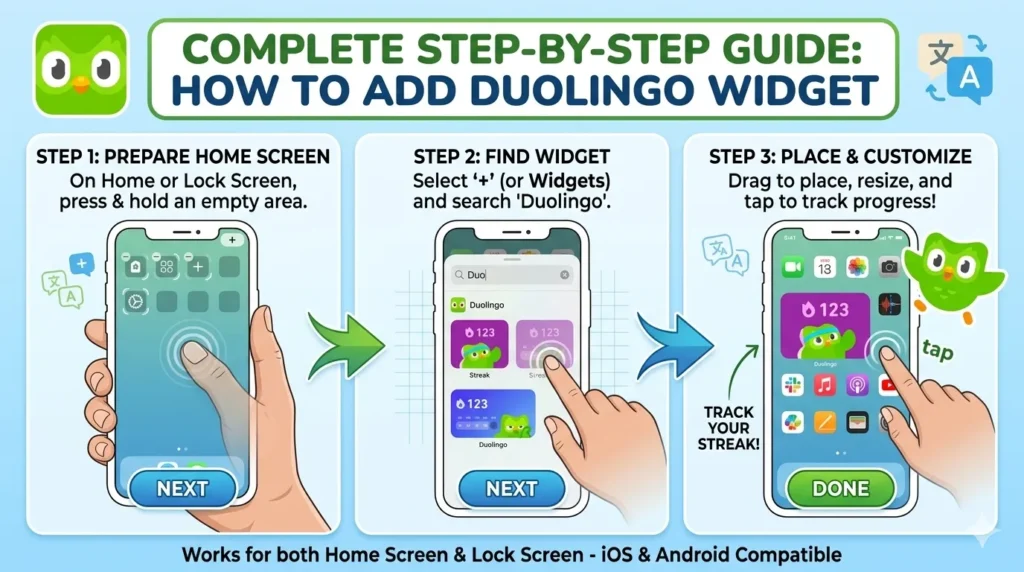
Adding the widget is a straightforward process that takes less than a minute on both major mobile platforms.
- For iPhone (iOS): Press and hold any empty space on your home screen until your apps start jiggling. Tap the “+” (plus icon) in the top-left corner, search for “Duolingo” in the menu, select your preferred widget size, and tap “Add Widget”.
- For Android: Long-press an empty area on your home screen and select the “Widgets” option from the pop-up menu. Scroll through your installed apps to find Duolingo, tap it to view available styles, and drag your chosen widget onto your desired home screen location.
Why Duolingo Widget is Not Showing
If you cannot find the widget in your list, it is usually due to a minor software conflict rather than a hardware limitation.
- App Not Updated: Older versions of the Duolingo app may not support the latest widget functionality; check your App Store or Google Play Store for pending updates.
- OS Compatibility: Ensure your device is running a modern OS version (iOS 14+ or Android 12+), as older operating systems lack the framework required for these widgets.
- Widget Not Enabled: Occasionally, the app permissions may restrict the widget from displaying; check your phone’s system settings to ensure Duolingo has permission to run background processes.
- App Cache Bug: Corrupted temporary data can cause the widget menu to fail to load the Duolingo icon correctly.
How to Fix Duolingo Widget Not Working
Most users fix this in under 2 minutes by following these proven troubleshooting steps.
- Restart Your Phone: A simple power cycle often forces the OS to re-scan for available widgets.
- Reinstall the App: Uninstall Duolingo, restart your device, and reinstall it to clear any corrupted local files.
- Refresh Widget List: If on iPhone, restarting the “Springboard” by force-closing apps or toggling airplane mode can force a menu refresh.
- Update Your OS: Ensure your device firmware is up to date, as modern features depend on the latest system libraries.
Benefits of Using Duolingo Widget
Integrating this tool into your daily routine provides significant psychological and practical advantages.
- Faster Access: You can jump straight into a lesson with a single tap, eliminating the need to navigate through your app folder.
- Streak Motivation: Seeing your streak count every time you unlock your phone creates a powerful subconscious incentive to avoid breaking your progress.
- Daily Reminder System: The widget acts as a non-intrusive reminder that nudges you toward your learning goals without the annoyance of constant push notifications.
Common Mistakes Users Make
Avoiding these pitfalls ensures a smooth setup process for your language learning tools.
- Searching in the Wrong Menu: Users often look in the “App Library” or “Settings” menu instead of the dedicated widget gallery.
- Ignoring App Updates: Many users expect widgets to function on outdated versions, which creates immediate compatibility errors.
- Overlooking OS Requirements: Attempting to install widgets on legacy phone software that does not support home-screen interactive elements.
Frequently Asked Questions
| Question | Answer |
| Why can’t I add Duolingo widget? | Usually, your app is outdated or your OS is incompatible. |
| Is it on all devices? | It is available on all modern iOS and Android devices. |
| Does widget affect streak? | No, it only displays your streak status; it does not change your progress. |
| Can you get a 1000 day streak? | Yes, consistent daily practice ensures you can reach any streak length. |
| How to get big widget? | Select the largest option when browsing the widget menu. |
| How to add course? | You must add courses inside the main Duolingo app settings. |
The Duolingo widget is an essential tool for any dedicated language learner who wants to maintain a consistent habit. By following the steps outlined above, you can ensure your streak is always visible, keeping you motivated and on track toward your fluency goals. Ensure your app remains updated to enjoy the latest features and improved widget performance across all your mobile devices.

I’m a website professional with 5 years of experience in building, managing, and growing online content platforms. As the creator of DuolingoGuides.us, I focus on providing helpful, easy-to-understand guides and resources for Duolingo users and language learners. My goal is to make information simple, accurate, and accessible for everyone.