
How To Add A Language On Duolingo (Step-by-Step Guide)
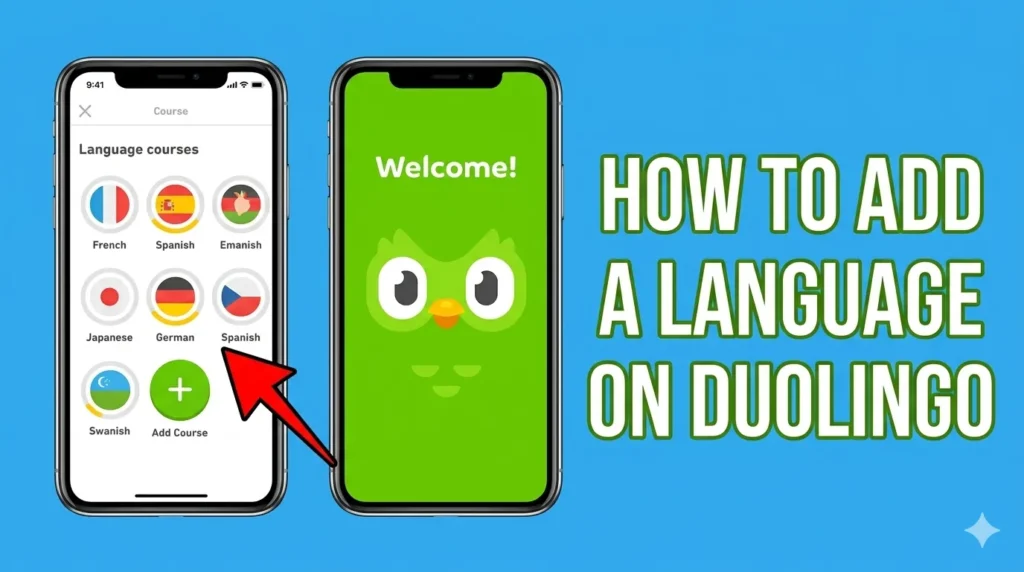
Struggling to add a new language on Duolingo? You’re not alone—many users in the USA face this when expanding their learning. This guide reassures you it’s simple and progress-safe, teaching you exact steps for mobile/desktop, multiple languages, fixes, and more.
Why Add Another Language
Americans often juggle career boosts like Spanish for business or French for travel, alongside personal goals. Duolingo supports polyglots by letting you pursue multiple tracks simultaneously without limits. Switching keeps learning fresh amid busy US lifestyles.
Step-by-Step: Add Language
Follow these proven steps from Duolingo’s official support, tailored for 2026 US English users.
On Mobile App
Open the Duolingo app and tap the flag icon at the top. Scroll to + Course, pick your language (e.g., Spanish from English), and start Basics or take a placement test. If the option vanishes, force-close/reopen or update—common on iOS/Android in the US. Toggle via flag anytime.
Duolingo’s mobile interface shines for on-the-go US commuters.
On Desktop
Log in at duolingo.com, click the flag icon top-right, select Add a new course, choose from English-base options, and begin. Unlike mobile’s swipe-friendly design, desktop offers precise mouse navigation but no drag-and-drop for sentences. Use the same flag to switch—no app needed for home study.
Desktop suits focused US desk workers better for longer sessions.
Adding Multiple Languages
Yes, Duolingo lets you add unlimited languages—no caps in 2026. Each course tracks separately; switch via flag without hassle. US users love this for stacking Spanish, Mandarin, and more for global jobs.
Progress Safety
No, adding won’t delete progress—Duolingo saves everything per course automatically. Streaks, XP, and leagues persist across switches, as confirmed for millions of US accounts. Rest easy and dive into new lessons.
Missing “Add Language” Option
UI glitches hide the + on outdated apps—update via App Store/Google Play. Account limits (rare post-2025) or VPNs block it; US users fix by clearing cache/logging out. Old versions lack 2026 courses—always latest for full access.
Change or Switch Course
Picked wrong? Tap flag, select course, or + Course for alternatives. No deletions needed—placement tests adjust levels instantly for accurate progress in English-base setups.
Same Language, Different Base
Advanced tip: Add Spanish from English, then tap “I Speak…” for Spanish from French—unique courses with tailored lessons. Ideal for US bilinguals bridging languages; warning shows base change. Low-competition hack for deeper mastery.
This expands options beyond standard English tracks.
Available Languages
Duolingo offers 148+ new courses in 2026, totaling over 200—Spanish, French, German, Italian, Japanese, Korean, Mandarin across 28 UIs for US English speakers. Expect AI-powered expansions; not all combos exist, but top picks cover travel/business needs. Check app for real-time list.
FAQs
How do I add a language in the Duolingo app?
Tap flag > + Course > select.
Can I add more languages on Duolingo?
Yes, unlimited—toggle freely.
How to add a course on Duolingo?
Flag icon > Add new/+ Course > Basics or test.
How do I change the language of my Duolingo app?
That’s interface: Settings > Language, separate from courses.
How to add a language to Duolingo?
As above—no progress loss.
How do Duolingo courses work?
Bite-sized lessons build skills; XP/streaks motivate.
Why won’t Duolingo let me add another language?
Update app, clear cache, check base language.
How do I add an additional language?
Repeat + Course; manage via flag.

I’m a website professional with 5 years of experience in building, managing, and growing online content platforms. As the creator of DuolingoGuides.us, I focus on providing helpful, easy-to-understand guides and resources for Duolingo users and language learners. My goal is to make information simple, accurate, and accessible for everyone.