How to Log Out From Duolingo on Any Device: Easy Step-by-Step Guide

Need to switch accounts, leave Duolingo on a shared device, or simply end your current session? Logging out is a quick way to close your Duolingo account session without deleting your learning progress.
The exact buttons can look slightly different depending on whether you use an iPhone, iPad, Android phone, tablet, or web browser. In most cases, however, the process takes only a few taps or clicks.
This guide covers the main ways to log out, including iOS, Android, desktop browsers, classroom accounts, multiple devices, and common logout problems.
Why Should You Log Out of Duolingo?
There are 3 common reasons to sign out:
- Security: Logging out is especially useful when you use a shared, public, school, or work device.
- Account switching: It lets you leave one account before signing into another.
- Troubleshooting: Signing out and signing back in can sometimes help when the app or account is behaving unexpectedly.
Logging out is different from deleting your account. Your Duolingo profile and learning progress are not removed simply because you signed out.
How to Log Out From Duolingo on iPhone
On a current iPhone, the usual process is straightforward:
- Open the Duolingo app.
- Tap Profile.
- Tap the gear icon to open Settings.
- Scroll toward the bottom of the settings screen.
- Tap Log Out or Sign Out.
- Confirm the action if Duolingo asks you to do so.
How to log Out From Duolingo on iPad
The iPad process is very similar to the iPhone:
- Open Duolingo.
- Open your Profile.
- Tap the gear icon.
- Scroll through Settings until you find Log Out.
- Tap it and confirm if required.
If you cannot immediately see the option, check the lower portion of the account settings rather than the lesson screen.
How to Log Out From duolingo on Android
The Android interface can vary between devices and app versions, but the basic route is:
- Open the Duolingo app.
- Go to your Profile.
- Tap the Settings or gear icon.
- Look for the account section.
- Tap Log Out or Sign Out.
- Confirm the logout.
This general method applies across Android devices such as Samsung, Google Pixel, OnePlus, and Huawei, although the location or appearance of the settings menu may differ.
If the logout button is not exactly where you expect it to be, look inside your profile and account settings rather than changing your phone’s system settings.
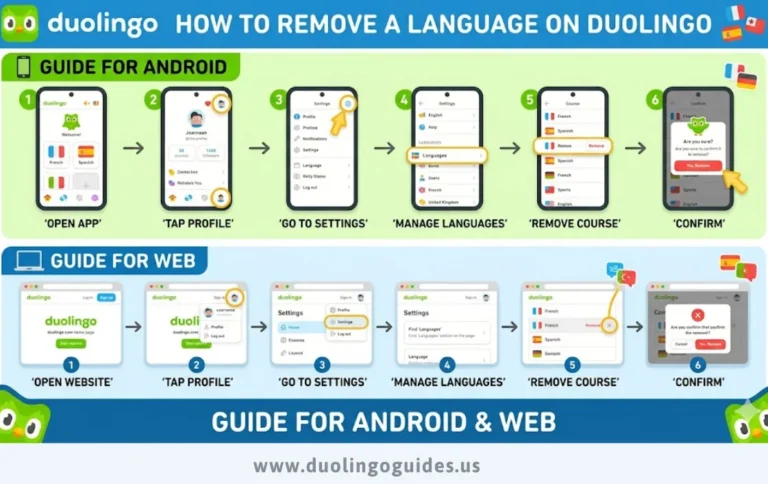
How to Log Out From Duolingo on a Browser
If you use Duolingo through a desktop browser, the process is slightly different from the mobile app.
- Open the Duolingo website.
- Make sure you are signed into the correct account.
- Click your profile picture or avatar.
- Open the account menu.
- Select Log Out.
The same general approach can be used in browsers such as Chrome, Firefox, Safari, Microsoft Edge, Opera, and Brave.
If the menu does not respond correctly, try refreshing the page first. Duolingo currently supports major browsers including Chrome, Safari, and Firefox.
What Happens to Your Duolingo Progress After Logging Out?
Logging out does not normally mean losing your account or learning progress.
Your progress is associated with your Duolingo account. When you sign back into the same account, you can continue from the account’s saved progress.
Duolingo itself recommends creating a profile so your progress can be accessed across devices.
Your streak is also tied to your account activity rather than simply whether the app remains logged in. The important thing is to continue completing your required activity when you return.
Can You Log Out of Duolingo on Multiple Devices?
This is an important distinction.
If you are worried that another person is using your Duolingo account on a different phone or tablet, simply logging out on your own device may not solve the security problem.
For an account-security situation, the safer approach is to:
- Change your Duolingo password.
- Sign out of your current session.
- Sign back in using the new password.
- Check whether any unfamiliar account activity continues.
- Contact Duolingo support if you still suspect unauthorized access.
Do not confuse this with simply switching between your own devices. If you recognize all the devices using your account, there may be no security issue.
Someone Else Is Using Your Duolingo Account
If another person is completing lessons or accessing your account without permission, treat the situation as an account-security problem, not just a logout problem.
For example, the supplied competitor case involved an iPhone, tablet, and Amazon Fire device and reported another person completing lessons.
Changing your password is particularly important because the goal is to prevent continued access rather than merely close the session on one device.
If the problem continues, Duolingo directs users needing help with the app, account, or subscription to its support resources.
Does Logging Out Cancel Duolingo Plus or a Subscription?
No. Logging out and cancelling a subscription are different actions.
If you have a paid Duolingo subscription, signing out does not itself cancel the subscription.
The subscription needs to be cancelled separately through the platform or service used to purchase it, such as the Apple App Store or Google Play.
So, if your goal is to stop recurring billing, do not assume that logging out has completed the cancellation.
Duolingo Classroom Accounts
Duolingo classroom users may also need to sign out.
There are 2 main account roles to consider:
- Teacher account
- Student account
The basic idea remains the same: open the account/profile settings and choose Log Out or Sign Out.
The exact menu can depend on the current Duolingo interface and account type.
What If Duolingo Won’t Let You Log Out?
Sometimes the logout option may not work correctly. Before making major changes, try these simple troubleshooting steps.
Restart the Duolingo App
Close Duolingo completely and open it again. Then return to your profile and settings.
Restart Your Device
If the app has frozen or the settings screen is not responding, restart your phone or tablet and try again.
Update Duolingo
An outdated app can behave differently from the current interface. Check your device’s app store for an available update.
Try the Browser Again
If you are using Duolingo on the web and the account menu is not working, refresh the page and try again.
Check Browser Cache or Extensions
Browser extensions, stored website data, or cache problems can sometimes interfere with account menus.
If necessary, try Duolingo in a private/incognito window or temporarily disable an extension that may be interfering.
Reinstall Only as a Last Resort
If the mobile app continues freezing, reinstalling it may help. Before doing so, make sure you know the login details for your account so you can sign back in afterward.
Logging Out vs. Deleting Your Duolingo Account
These actions are not the same.
Logging out ends your current session. You can sign back in later and continue using the account.
Deleting your account is a much more serious action because it is intended to remove the account and associated data.
If you only want to switch accounts, protect your information on a shared device, or temporarily stop using Duolingo, choose Log Out rather than account deletion.
How to Sign Back Into Duolingo
After logging out, returning to your account is simple.
Open Duolingo and choose the option to sign in. Enter the credentials associated with your account and continue.
If you have multiple accounts, double-check the email or login method before continuing so you do not accidentally enter a different profile.
Your account profile is what allows your learning progress to be available when you use Duolingo on other devices.
Quick Logout Checklist
Before leaving Duolingo, remember these 5 points:
- Open Profile.
- Open Settings with the gear icon.
- Choose Log Out/Sign Out.
- Confirm the action if prompted.
- If someone else has access to your account, change your password instead of relying only on local logout.
Frequently Asked Questions
How do I log out of Duolingo?
Open Duolingo, go to Profile, open Settings, and select Log Out or Sign Out. The exact wording can vary by device and app version.
How do I log out of Duolingo on iPhone?
Open the app, tap Profile, tap the gear icon, scroll down, and select Log Out.
How do I log out of Duolingo on Android?
Open your profile, enter Settings, and choose Log Out or Sign Out. The menu location can vary between Android devices.
How do I log out of Duolingo on a computer?
Open Duolingo in your browser, click your profile picture, open the account menu, and select Log Out.
Will logging out delete my Duolingo progress?
No. Logging out is not the same as deleting your account. Your progress remains associated with your account when you sign back in.
Does logging out cancel Super Duolingo?
No. Signing out does not automatically cancel a paid subscription. Subscription cancellation must be handled separately through the purchasing platform.
Can I log out if someone else is using my account?
Yes, but if you believe another person has unauthorized access, do more than simply log out on your own device. Change your password and seek account support if the problem continues.
What should I do if the logout button is missing?
Check the Profile and Settings areas first. If the app is outdated or frozen, restart it, update it, and try again. For browser problems, refreshing the page or testing another supported browser can help.
Final Thoughts
Logging out of Duolingo is usually a quick process: open your Profile, enter Settings, and select Log Out or Sign Out. The main difference is where those controls appear on iPhone, iPad, Android, and the browser version.
Remember that logging out does not delete your account or automatically cancel a subscription. If your concern is that someone else has access to your account, treat it as a security issue and change your password. For ordinary account switching or shared-device privacy, the normal logout process should be enough.

I’m a website professional with 5 years of experience in building, managing, and growing online content platforms. As the creator of DuolingoGuides.us, I focus on providing helpful, easy-to-understand guides and resources for Duolingo users and language learners. My goal is to make information simple, accurate, and accessible for everyone.